AI MVP Builder: From Idea to Working App in Days, Not Months
Discover how an AI MVP builder can turn your idea into a functional app. Learn to write effective prompts, iterate designs, and export production-ready code.
By Parth
27th Nov 2025
Last updated: 9th Apr 2026
An AI MVP builder is a tool that turns your product idea into a real, working mobile app using plain English. Instead of writing code or creating detailed mockups, you describe what you want, and an AI generates the UI screens and even the exportable source code. For founders, product managers, and designers who need to test ideas quickly, this changes everything.
From Months to Minutes: The New MVP Reality
The old way of building a mobile app was a marathon. A founder with a great idea would spend months—and a small fortune—just to get a basic version off the ground to show investors or first users. That entire model is being upended.
This change is thanks to a new wave of AI tools that understand your vision and build functional app screens from simple, descriptive text prompts. We're not talking about static mockups. These tools create interactive components and generate an exportable codebase that a developer can actually use as a starting point.
For anyone building a mobile product, this new workflow means you can:
- Validate ideas almost instantly: Get a functional prototype in front of users in days, not months.
- Slash upfront costs: Avoid massive engineering bills just to test your core concept.
- Own your vision: Shape the UI and user experience directly without playing telephone with a dev team.
- Give developers a real head start: Hand off a solid foundation of clean, ready-to-use code instead of static Figma files.
A Radically Different Way to Build
The shift is dramatic. Startups using AI-assisted tools are launching functional MVPs in just 2 to 6 weeks—that's roughly 10 times faster than the traditional six-month slog. This speed also brings a massive cost savings of up to 85%, which is a game-changer for any lean team.
To put this in perspective, here's a practical comparison for a product team.
| Metric | AI MVP Builder | Traditional Development |
|---|---|---|
| Timeline | Days to a few weeks | 4-6+ months |
| Upfront Cost | Low (often subscription-based) | High (tens of thousands of dollars) |
| Skills Needed | Product vision, clear communication | Engineering, UI/UX design, project management |
| Iteration Speed | Near-instantaneous (minutes) | Slow (days or weeks per change) |
The AI approach isn't just a minor improvement; it’s a completely different way of operating that prioritizes speed and user feedback above all else.
The diagram below shows just how much complexity AI removes from the initial product development cycle.
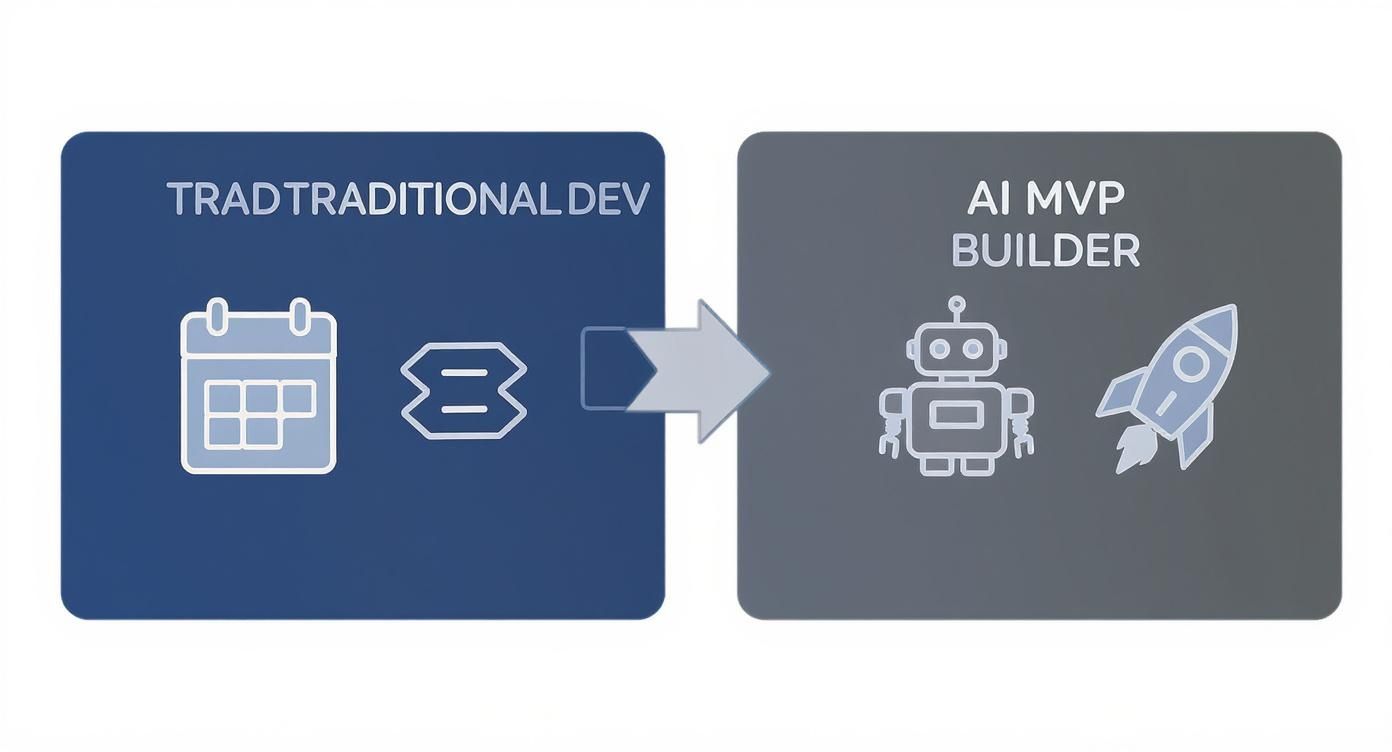
What used to be a long, winding road of separate design, coding, and feedback stages is now a tight, agile loop. This is exactly the kind of efficiency platforms like Shortgenius, a platform for rapid MVP development are built to provide.
How to "Speak AI": Turning Your MVP Idea Into Great Prompts
Here's a hard-earned lesson: the real magic of using an AI MVP builder isn't about the tool itself, but about learning to "speak" its language. The quality of the screens you get out is a direct reflection of the clarity of the prompts you put in.
Think of yourself as a product manager briefing an engineer. You can't just give vague ideas; you need to provide clear, actionable instructions. A weak prompt like "make a task manager app" is the builder's equivalent of asking a designer to "make it pop." You'll get something, but it won't be what you pictured.
The trick is to move beyond simple commands and start writing detailed blueprints that the AI can actually follow.
First, Think in Flows, Not Just Screens
Before you write a single prompt, map out the user's journey. Don’t get bogged down in designing one perfect screen. Instead, ask: how does a user actually move through my app?
For example, imagine you're building a simple task manager app. A core user flow might be:
- First-time open: The user sees a Login/Sign Up screen.
- After sign-up: They land on the main Dashboard where their tasks are listed.
- Creating a task: They tap an "Add Task" button, which opens a new screen.
- Viewing a task: They tap a task on the Dashboard and navigate to a Task Detail screen.
Just like that, you have a clear roadmap for the first four screens you need to generate. Breaking the app down into a logical flow makes the whole process manageable and ensures you're building an experience that makes sense.
Anatomy of a High-Quality Prompt
Now let's take one of those steps—the main Dashboard—and build a prompt for it. The goal is to leave as little to the AI's imagination as possible.
A great prompt is a mini spec doc. It should cover the screen’s purpose, its core components, and the general visual style.
So, instead of a flimsy "create a task list screen," you need to get granular. A good prompt defines the header, the main content, and the navigation. If you're curious about the mechanics of how a tool like RapidNative interprets these prompts, the documentation on the prompt-to-design core feature is a great place to start.
Example: A Detailed Prompt for a Task Dashboard
Here’s what an effective prompt looks like in practice. Notice how it describes layout, content, and even styling cues.
Create a mobile app screen titled "My Tasks".
The screen needs a clean, minimalist design. The primary color is a deep blue (#1A3A6D). At the top, there's a header with the "My Tasks" title aligned left and a circular user profile icon on the right.
Below the header, add a search bar with the placeholder text "Search tasks...".
The main area is a vertical list of tasks. Each list item should have a checkbox on the left, a bolded task title, and the due date underneath the title in a smaller, gray font. Please add three example tasks: "Finalize Q3 report," "Design new wireframes," and "Schedule team meeting."
Finally, place a floating action button (FAB) in the bottom right corner. It should be the primary blue color and have a white plus (+) icon inside.
This level of detail is what separates a generic, unusable screen from one that’s 90% of the way there, saving you from endless back-and-forth edits later.
With your foundational prompts ready, it's time to watch the AI bring your app to life. This is where your text descriptions transform into actual, tappable screens—the moment your MVP starts to feel real.
Crafting the Welcome Mat: Login and Onboarding
Your login and onboarding flow is your app's digital handshake. It has to be smooth, welcoming, and fast. A clunky sign-up process is one of the quickest ways to lose a user before they've even seen what you've built.
Let's start by prompting for a clean, modern login screen. Be very clear about the specific UI elements you need, including modern must-haves like social sign-in options.
Example Login Screen Prompt
Generate a login screen with a minimalist design. At the top, place our app's logo. Below it, include two input fields: one for "Email" and one for "Password." Add a primary "Log In" button. Underneath the button, include a text link for "Forgot Password?" and then add two social login buttons side-by-side for Google and Apple.
This prompt is effective because it spells out the layout and functionality. Once a user is in, you can guide them with a simple onboarding flow that highlights key features without feeling like a lecture.
Building Your Core Loop: List and Detail Screens
Most apps follow a simple pattern: a list of items that leads to a detailed view of one of those items. It could be an email inbox, a product feed, or a task list. This "list-to-detail" flow is the workhorse of your entire user experience.
When generating these, you need to think about how they're connected. You'll prompt for the list screen first, defining what each item in the list should look like. Then, you'll create the detail screen that will show more information when an item is selected.
Practical Tip: When prompting for lists, always include placeholder data. This gives the AI a concrete example of the content and structure for each list item, which leads to a much more realistic design right away.
Let's stick with our Task Manager app to see this in action.
Example List Screen Prompt
Create a screen named "Projects." It should have a header with the title "All Projects" and an "Add" icon on the right. The main body should be a vertical scrollable list. Each item in the list should display a project title in bold, a project description below it in a lighter gray text, and a due date aligned to the right. Use placeholder data for three projects.
Notice how that prompt describes not just the UI but also the data structure for each item. Now, we need the screen that appears when a user taps on one of these projects.
Example Detail Screen Prompt
Create a detail screen for a single project. The header should show the project title and have a back arrow on the left. The main content area needs to display the project title again in a large font, followed by a multi-line project description. Below the description, add a section titled "Tasks" with a list of checkboxes and task names. The project title and description should be placeholders.
By defining these screens separately but with their connection in mind, the AI builder can generate a linked, clickable prototype. This lets you immediately test that core user flow—a crucial step in validating your app's basic usability.
Refining Your Design With Conversational Edits
Let's be real: your first AI-generated draft is an amazing head start, but it’s rarely the finished product. The real magic happens in the next step: the iterative loop of refinement. This is where an AI MVP builder stops being a simple generator and starts acting like an interactive design partner.
Think of it like having a junior designer on call who can implement changes in seconds. Instead of opening Figma, tweaking properties, and waiting for a rebuild, you just tell the AI what you want. This conversational back-and-forth is the secret to polishing your UX at a speed that feels like cheating.
Of course, the trick is learning how to give good directions. "Change the button" isn't going to cut it.
Pro Tip: Specificity is your superpower. The more detailed your request, the better the outcome. Treat the AI like a junior developer who needs clear specs for every change.
A powerful edit, for instance, sounds less like a suggestion and more like a direct order: "Make the primary button on the login screen solid blue, hex #4A90E2, with white text and 12px corner rounding." That level of detail leaves no room for error and gets you exactly what you envisioned, instantly.
Your Cookbook of Common Chat Commands
Getting the hang of conversational edits is about building a mental library of common requests. You don't need to memorize code; just get comfortable describing visual changes in plain English. Here are some of the most frequent and high-impact edits for any product builder.
Common Refinements:
- Color & Style: "Change all primary buttons to our brand color #5D3FD3."
- Typography: "Increase the font size of all screen titles to 24pt and make them bold."
- Spacing & Alignment: "Add 16px of padding around the main content container on the dashboard."
- Component Swaps: "Replace the checkmark icon in the task list with a star icon."
- Layout Rearrangement: "Move the search bar on the 'My Tasks' screen to be below the header."
This ability to make quick, precise changes is a massive advantage. Tools like RapidNative are pushing this further with features for making inline edits directly, which tightens the feedback loop even more. This whole process doesn't just save time; it dramatically lowers the cost of design exploration.
Speaking of which, iterating with an AI MVP builder is far more budget-friendly than traditional development cycles. While basic AI MVPs using pre-built APIs might start around $15,000 to $30,000, projects with more custom work can easily run between $30,000 and $80,000. By using conversational edits to nail down your design before any heavy coding starts, you keep your project closer to the lower end of that spectrum.
Ultimately, mastering conversational edits is what closes the gap between a rough concept and a polished, professional-looking app. You're perfecting your app's look and feel in minutes, not days.
Getting Your Code Ready for a Smooth Developer Handoff
You’ve prompted, tweaked, and iterated your way to a polished, clickable prototype. That's a huge step. But the real goal is to get this into the hands of users, which means turning your design into a functional product. This is where a modern AI MVP builder truly shines—by translating your visual MVP into clean, production-ready code.
It's not just about getting a pixel-perfect copy of your design. It's about giving your engineering team a massive head start, closing the gap between your vision and their workflow.
The beauty of this approach is that the AI exports code in a framework like React Native. This gives you a single codebase that works on both iOS and Android. For any startup, that’s a game-changer. You build it once, and it runs everywhere, saving the incredible time and money you’d otherwise sink into maintaining two separate apps.
Prepping for a Painless Handoff
Just clicking "export" isn't enough. A folder of code files dropped on a developer without context is just as confusing as a static Figma file. Your job as a founder or PM is to package that code with clear documentation explaining how it all fits together.
A solid handoff package should always include:
- A Component Inventory: A list of the main reusable components the AI built, like "PrimaryButton", "TaskListItem", or "Header", with a quick note on what each one does.
- User Flow Guides: A map of the key user journeys. For instance, describe the "New User Onboarding" flow by listing the screens in order: "LoginScreen" -> "OnboardingStep1" -> "DashboardScreen".
- Notes on Data: Be explicit about where you've used placeholder data and what real data should eventually go there. For example: "The user avatar in the header needs to pull from the user's profile image URL from our user database."
The whole point is to remove any guesswork. Your developer should be able to open the exported code and your notes and immediately understand the app's structure.
When you put in this bit of extra effort, the AI builder becomes a genuine accelerator. Developers aren’t starting from a blank screen; they're starting with a solid foundation of well-structured UI code.
To see exactly what this looks like in practice, you can learn more about how to export real React Native code with RapidNative. This gives your technical team a clear roadmap for wiring up the backend and bringing your MVP to life.
Common Questions About AI MVP Builders
As this technology becomes more common, some healthy skepticism is natural. What can an AI MVP builder really do, and where does the hype stop? Let's tackle some of the most common questions from product teams.
A big one is: "Can I build my entire, market-ready app with this?" The short answer is no, and that’s the point. These tools are powerhouses for generating the front-end user interface and a clickable prototype. They build the screens, user flows, and design components in a fraction of the time it would take to do it manually.
But you'll still need a developer to wire everything up. This front-end code needs to be connected to a backend, a database, and your APIs to manage real user data and handle the business logic. The builder’s role is to give your developers a massive head start on the UI/UX, not to replace backend engineering.
So, What's the Code Quality Like?
If you’re imagining the jumbled, hard-to-maintain code from older "no-code" tools, you can relax. Modern AI builders are in a different league. They produce clean, human-readable code in standard frameworks like React Native.
You get a well-structured project with reusable components, making it simple for any developer to jump in, understand the architecture, and start building on top of it. It’s not a locked-down "black box"—it's a solid foundation. This leap in quality is a big reason why the market for these tools is projected to hit USD 3.8 billion by 2032, as more companies demand faster ways to build. You can find more data on this trend over at dataintelo.com.
Knowing the Limitations
While these builders are incredibly good at UI generation, it's just as important to understand their boundaries. This isn't a silver bullet for every development challenge.
Think of an AI MVP builder as a brilliant front-end specialist. It supercharges everything a user sees and touches, but the heavy lifting of data architecture and server-side logic still falls to your engineering team.
You’ll still need traditional development for things like:
- Complex Backend Logic: Anything with intricate business rules, heavy data processing, or custom algorithms.
- Database Architecture: Designing and managing the database schema, queries, and migrations.
- Specialized Hardware Integrations: Accessing native device features like low-level camera controls, Bluetooth, or specific sensor data.
The very existence of these powerful builders is a testament to the specialized skills needed for modern app development. It's why roles for hiring AI engineers are so in-demand. These tools give them a solid foundation so they can focus their time on the tough, high-value problems that make your product unique.
Ready to turn your idea into a functional mobile UI with clean, exportable code? RapidNative lets you build and iterate on React Native apps using simple text prompts. Start building your MVP for free.
Ready to build your app?
Turn your idea into a production-ready React Native app in minutes.
Free tools to get you started
Free AI PRD Generator
Generate a professional product requirements document in seconds. Describe your product idea and get a complete, structured PRD instantly.
Try it freeFree AI App Name Generator
Generate unique, brandable app name ideas with AI. Get creative name suggestions with taglines, brand colors, and monogram previews.
Try it freeFree AI App Icon Generator
Generate beautiful, professional app icons with AI. Describe your app and get multiple icon variations in different styles, ready for App Store and Google Play.
Try it freeFrequently asked questions
What is RapidNative?
RapidNative is an AI-powered mobile app builder. Describe the app you want in plain English and RapidNative generates real, production-ready React Native screens you can preview, edit, and publish to the App Store or Google Play.
Can I export the code?
Yes. RapidNative generates clean React Native and Expo code that you can export at any time. No lock-in, no proprietary format. Hand it to your developers or keep building inside RapidNative.
Is RapidNative free to use?
Yes. You can build apps on the free plan with no credit card required. Paid plans unlock unlimited AI generations, code export, and direct publishing to the App Store and Google Play.
Do I need to know how to code?
No. Most users build apps by describing what they want in plain English. Developers can drop into the code whenever they want more control, but coding is optional.
How long does it take to build an app?
Most users have a working first screen in under a minute. A full MVP usually takes a few hours instead of the weeks or months traditional development requires.