How to Prototype Internal Mobile Tools Your Team Will Actually Use
Learn to prototype internal tools mobile apps using AI. This guide provides actionable steps for building and testing mobile products with AI prompts.
By Damini
21st Dec 2025
Last updated: 21st Dec 2025
When you need to prototype internal tools for mobile, speed is everything. Forget traditional development cycles that take weeks or months. Using AI, you can now build functional UI from simple text prompts, turning an idea into an interactive prototype in hours. This means anyone—a product manager, a founder, a designer—can quickly build and test mobile apps for internal needs like inventory management or field service reporting, and get a real feel for the final product almost instantly.
A Faster, Smarter Way to Build Internal Apps
Let's be honest, the old way of building internal tools was painfully slow. For mission-critical apps handling logistics, sales, or operations, you’d be stuck in design and development cycles for months before your team ever saw a working version.
The new workflow is built for speed. It’s collaborative, with AI acting as your co-pilot. This approach puts the power to create directly into the hands of the people who actually understand the problem. In this guide, I'll walk you through a practical, prompt-to-UI process that does just that. We're going to skip the high-level theory and jump straight into a real-world example.
Real-World Scenario: A Mobile App for the Warehouse Team
Picture a logistics company that's outgrowing its ancient, paper-based inventory system. The warehouse crew desperately needs a simple mobile app. They need to scan barcodes, update stock levels, and flag damaged items right there on the warehouse floor.
In the past, this project would have been a slog:
- Endless meetings to gather requirements from a team that's too busy to sit in meetings.
- Back-and-forth between stakeholders and designers for wireframes that don't capture the real workflow.
- A long, costly development sprint for a V1 that might not even solve the core problem.
- Slow feedback loops between the people using the app and the engineers building it.
With a prompt-to-UI workflow, this all changes. A product manager can take the warehouse team's direct feedback, translate it into plain English prompts, and generate an interactive mobile prototype on the spot. As you dive into this method, it's also helpful to ground your thinking in solid principles; checking out a practical guide to mobile-first design can provide a great foundation.
This is about more than just speed. It's about building the right tool by dramatically shortening the distance between the end-user's needs and the final product. Your non-technical team members can see, feel, and give feedback on the app from the very beginning.
I'm going to take you through every step of this process. You'll see exactly how AI can take a simple idea and turn it into a functional prototype with clean, production-ready React Native code. By the end, you’ll understand how this approach empowers everyone to build better tools, faster.
Map Your User Flows and Core Requirements
Before you write a single AI prompt, you need a plan. A great internal tool starts with a crystal-clear understanding of what it needs to do and, more importantly, how your team will actually use it day-to-day. This isn't just busywork; it's the foundation that separates a genuinely useful prototype from a digital paperweight.
This initial planning phase is all about turning broad business needs into simple, concrete steps for specific users. These steps become the direct input for your AI, ensuring the prototype it generates is aimed at solving real-world problems right from the get-go. As you can see, this modern workflow radically simplifies the journey from a basic idea to a functional prototype.
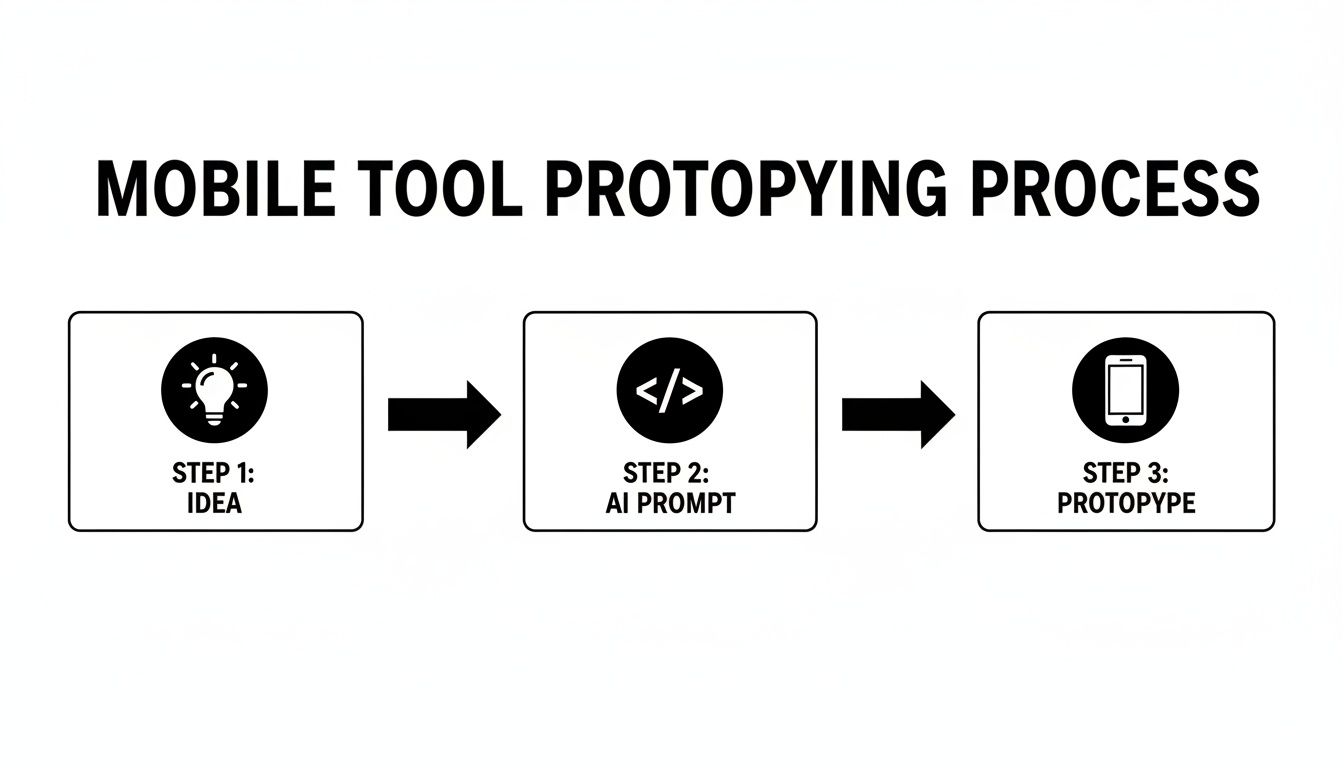
This prompt-driven approach dramatically cuts down on the time and complexity typically associated with building a mobile app from scratch.
Who Needs to Do What?
Let's stick with our warehouse app example. The key is to stop thinking about a generic list of features and start thinking about the people involved and the jobs they need to get done.
- Inventory Manager: Their world revolves around scanning incoming stock and updating its status. For them, the app needs to be lightning-fast, with a camera-centric workflow that requires the absolute minimum number of taps.
- Warehouse Staff: These are the folks on the ground. They need an easy way to flag problems, like damaged goods or items in the wrong spot. Think a simple, quick-access form, maybe with an option to snap a quick photo.
- Shift Supervisor: They need the 30,000-foot view. A dashboard showing daily inventory changes and any open alerts is their priority. Their interaction is about monitoring and oversight, not manual data entry.
Defining these roles and their core responsibilities gives the AI the critical context it needs to build a relevant UI. For anyone in a product role, thoroughly documenting these user journeys is non-negotiable, a topic we explore more in our guide on mobile prototyping for product managers.
Breaking Down the Action
Now, we can get even more granular by breaking down each person's main goal into a logical sequence of actions. This effectively creates a mini-storyboard for every feature, which is exactly what you’ll feed the AI.
Let's take our Inventory Manager's "Scan-and-Update" task. Here’s a simple breakdown of that user flow.
Logistics App Feature and User Flow Mapping
Breaking down the core features of our example internal tool and mapping them to specific user actions and goals.
| Feature | Primary User | User Goal | Key Actions in Flow |
|---|---|---|---|
| Scan New Stock | Inventory Manager | Quickly add new items to the system | 1. Tap 'Scan Item'. 2. Camera opens. 3. Scan barcode. 4. Confirm item details. 5. Select status. 6. Save. |
| Report an Issue | Warehouse Staff | Flag damaged goods or location errors | 1. Tap 'Report Issue'. 2. Select issue type. 3. Add optional notes. 4. Attach photo. 5. Submit. |
| Daily Overview | Shift Supervisor | Monitor daily inventory movement and alerts | 1. Open app to dashboard. 2. View 'New Stock' summary. 3. Check 'Open Alerts' list. 4. Tap an alert for details. |
This level of detail is exactly what we need. The clearer and more specific your instructions are, the more accurate the AI-generated prototype will be on the first try. That saves you a ton of time on back-and-forth edits later.
This structured, problem-solving approach is why so many businesses are turning to internal mobile tools. In fact, a staggering 66% of remote-first businesses now rely on workflow automation apps to keep their teams productive and efficient.
How to Craft AI Prompts That Actually Build Good Mobile UIs
This is where the magic happens. We get to take all those user flows and requirements and turn them into something real—an interface you can actually tap and interact with. The secret to making this work is all in how you write your prompts.
If you’re vague, you'll get generic, unusable screens. It’s the fastest way to get stuck in a frustrating loop of endless tweaks and edits. Think of it like you're directing an actor: you wouldn't just say "act sad." You'd give them motivation, context, and specific actions. The same goes for the AI.
A generic prompt like "make a login screen" just isn't going to cut it. You have to be the director, dictating every important element to get the AI to build something that’s both functional and intuitive. It's a skill worth mastering, especially since projections show 28% of all new apps launched in 2025 will incorporate AI features, particularly for internal enterprise tools. If you're curious about the numbers, you can dig into more application development trends in this detailed statistical analysis.
The Anatomy of a Powerful Prompt
I've found that the best prompts for mobile UI screens always include three key pieces of information. If you can consistently nail these, the quality of your first-pass prototypes will skyrocket.
- Screen Goal: What is this screen for? Start with one simple sentence that defines its primary purpose.
- Key Components: What needs to be on the screen? List out the non-negotiable UI elements like input fields, buttons, lists, or nav bars.
- Actions & Data: What happens when someone taps something? Describe the interactions and mention what kind of data the screen needs to show or collect.
Let's put this into practice with our logistics app example, starting with the very first thing a user sees.
Example Prompts for Our Logistics App
Enough with the theory. Here are the exact prompts I’d use to generate the core screens for our internal warehouse tool.
Prompt for the Login Screen:
Create a login screen for an internal logistics app. The screen should have a company logo at the top, email and password input fields, a primary "Log In" button, and a secondary option for "Sign in with SSO" using a different button style.
Prompt for the Main App Shell:
Generate the main app interface with a bottom tab-based navigation bar. The navigation should have three tabs with icons and labels: 'Inventory', 'Reports', and 'Alerts'. The 'Inventory' tab should be the default active screen.
See how that works? This structured approach gives the AI a clear blueprint, which means the UI it generates will be much closer to your vision right from the start. For more ideas on how to get the most out of your AI tools, take a look at our collection of prompt engineering tips.
Once the basics are in place, we can get even more granular with task-specific screens.
Prompt for a Scanning UI:
Design a screen for scanning inventory barcodes. It needs a large camera view that takes up most of the screen. Below the camera view, add a text label that displays the "Last Scanned Item ID" and a "Manual Entry" button.
By breaking down each part of how you prototype internal tools mobile style, you're building a solid foundation one component-driven prompt at a time. This makes the whole thing much easier to refine and iterate on later.
Refine and Iterate on Your Prototype with Chat
Your first AI-generated screen is just a starting point. It’s a good one, but it's not the end of the story. The real power of this prompt-to-UI workflow is how quickly you can evolve that initial draft using plain English. This is where you collapse the painfully slow feedback loop that usually exists between an idea and something you can actually see and touch.
Forget scheduling a meeting, writing up a ticket, and waiting for an engineering cycle. Now, you can make changes on the fly. This kind of speed is a game-changer for internal tools, which have become essential for modern business. A massive 83% of US enterprises already use mobile apps for their internal workflows, which shows just how critical these tools are. You can dig into more on the rise of enterprise mobile apps and related statistics here.
This ability to iterate instantly keeps the project moving forward and makes it far more likely that the final product will actually solve the user's problem.
Putting Conversational Edits into Practice
Let's go back to our logistics app prototype. The first version works, but we just got some quick feedback from the warehouse supervisor. Instead of translating that into a formal request, we can just type it right into the chat.
Here's how a typical refinement session might play out:
-
Warehouse Supervisor says: "The main button is kind of bland. Can we make it our company blue?"
-
Your Chat Command:
Change the primary button color to our brand blue, #0044CC. -
Warehouse Supervisor says: "It's hard to tell which items are in-stock versus out-of-stock at a glance."
-
Your Chat Command:
Add a status indicator icon next to each inventory item. Use a green checkmark for 'In Stock' and a red X for 'Out of Stock'. -
Warehouse Supervisor says: "The text in that table is too small for our folks to read easily on their phones."
-
Your Chat Command:
Increase the font size in the data table to 16px.
This is huge. It lets product managers, designers, and even non-technical founders get their hands dirty and directly shape the UI. You’re not just describing a change anymore; you’re making it happen in seconds, without touching any code.
Why This Method Is a Big Deal
This isn't just about saving a few hours. This iterative loop fundamentally changes how internal mobile tools get designed and polished.
By using simple chat commands, you tear down the wall between spotting a problem and implementing a fix. This encourages more experimentation and fine-tuning early on. The result is a much more thoughtful, user-friendly app that gets handed off to the engineering team for backend work, saving everyone time and frustration down the line.
From Prototype to Production Code
A polished prototype is a huge win, but its real value comes when you get it into your team's hands as a real, working application. This is where modern AI-driven workflows completely outshine traditional design tools. The goal was never just a pretty picture; it was always about generating a functional codebase your engineers can run with from day one.
The final move here is to transform your tweaked-to-perfection UI into clean, production-ready React Native code. This isn’t one of those messy exports that an engineer looks at once and then decides to rewrite from scratch. What you get is a well-structured project with modular components that follow modern development practices, cutting down the time from concept to deployment dramatically.
Making the Handoff Painless
The handoff to engineering should feel like a natural next step, not a roadblock. When you export the code, you're not just giving developers a visual guide—you're handing them the actual building blocks of the app.
This exported code becomes the foundation of your internal tool. Your engineers can pull it into their local environment and immediately start tackling the complex logic, without having to build a single button or screen layout.
This means they can focus on what they do best:
- Connecting to Backend APIs: They'll take the screens you designed and wire them up to your company’s data sources, whether that's a warehouse management system, a sales CRM, or a custom internal database.
- Implementing Authentication: Security is everything. They can easily integrate your standard authentication services, like Single Sign-On (SSO), right into the existing code.
- Plugging into CI/CD Pipelines: The codebase is ready to be added to your existing continuous integration and delivery pipelines for automated builds, testing, and deployment.
The big takeaway here is that you're giving your engineering team a massive head start. They get to skip the time-consuming and often frustrating task of translating static designs into code. Instead, they can focus their talent on the heavy lifting: business logic, security, and performance.
Closing the Gap Between Design and Development
This way of working completely changes the dynamic between product managers and engineers. The old "throw it over the wall" handoff is gone. It’s replaced by a genuinely collaborative process where the time you spent to prototype internal tools mobile style has a direct, measurable impact on the development schedule.
Developers begin with a huge advantage. They get a clean React Native project that already has the navigation, screen layouts, and core UI components you worked so hard to refine. For any team that needs to move fast, knowing how to export real React Native code is the skill that turns a great idea into a tangible product.
What does this all mean in the end? The finished tool gets into the hands of your internal users faster, solving their problems and making the business more efficient, sooner. It’s a smarter way to build the tools your company depends on.
Frequently Asked Questions
Jumping into a new workflow, especially one that brings AI into the mix for building mobile internal tools, is bound to spark a few questions. I get these all the time from founders, PMs, and developers who are curious about this prompt-to-UI approach. Let's tackle some of the most common ones.
Can I really prototype an app with AI if I can't code?
Yes, absolutely. In fact, that's one of the biggest reasons this method is so powerful.
The whole front end of the process—from mapping out how a user will move through the app to generating and tweaking the UI with plain English—is built for non-technical folks. You can get a high-fidelity, interactive prototype into your hands without touching a single line of code. The handoff to your dev team happens at the very end, and you're giving them a huge head start with production-ready code.
How secure is AI-generated code for our internal tools?
This is a great question. The AI generates standard front-end code (in this case, React Native), which is no more or less secure than code a developer would write by hand.
The real security of your internal tool lives in your backend systems, your authentication protocols like SSO, and how you handle data. Your engineering team is still in the driver's seat for all of that, implementing the same security best practices they would for any other project.
Think of it this way: the AI builds the "storefront," but your team still builds the secure "vault" in the back where all the sensitive data and business logic are kept safe.
What kind of internal tools are a good fit for this?
This workflow shines for task-oriented and data-heavy internal tools. If your app is built around common UI elements like forms, lists, tables, and different screens, you're in the sweet spot.
Some real-world examples I've seen work incredibly well are:
- An inventory management app for the warehouse crew to use on the floor.
- A field service dashboard so technicians can update jobs while on-site.
- A simple employee directory for looking up contact info and roles.
- An expense approval system to get approvals done from anywhere.
- A lightweight CRM tool for the sales team to manage leads on the go.
Even for more complex or graphically unique apps, you can use this method to rapidly build the foundational structure before handing it off to your developers to add their custom magic.
How is this different from a no-code builder?
No-code platforms are fantastic for getting simple apps off the ground, but they can quickly hit a wall when it comes to customization, performance, or scaling. The key difference here is the output: you get high-quality, real source code.
This is a game-changer because you aren't locked into one platform's ecosystem. Your developers have total freedom to extend the app, customize it to your exact needs, and integrate it deeply with your existing tech stack. It’s the speed of a low-code tool but with the power and flexibility of traditional coding. You really get the best of both worlds.
Ready to see how fast you can prototype internal tools mobile apps? RapidNative takes your ideas and turns them into production-ready React Native code with simple prompts. Go from a rough concept to a working prototype in minutes, not weeks. Start building for free.
Ready to build your app?
Turn your idea into a production-ready React Native app in minutes.
Free tools to get you started
Free AI PRD Generator
Generate a professional product requirements document in seconds. Describe your product idea and get a complete, structured PRD instantly.
Try it freeFree AI App Name Generator
Generate unique, brandable app name ideas with AI. Get creative name suggestions with taglines, brand colors, and monogram previews.
Try it freeFree AI App Icon Generator
Generate beautiful, professional app icons with AI. Describe your app and get multiple icon variations in different styles, ready for App Store and Google Play.
Try it freeFrequently asked questions
What is RapidNative?
RapidNative is an AI-powered mobile app builder. Describe the app you want in plain English and RapidNative generates real, production-ready React Native screens you can preview, edit, and publish to the App Store or Google Play.
Can I export the code?
Yes. RapidNative generates clean React Native and Expo code that you can export at any time. No lock-in, no proprietary format. Hand it to your developers or keep building inside RapidNative.
Is RapidNative free to use?
Yes. You can build apps on the free plan with no credit card required. Paid plans unlock unlimited AI generations, code export, and direct publishing to the App Store and Google Play.
Do I need to know how to code?
No. Most users build apps by describing what they want in plain English. Developers can drop into the code whenever they want more control, but coding is optional.
How long does it take to build an app?
Most users have a working first screen in under a minute. A full MVP usually takes a few hours instead of the weeks or months traditional development requires.