React Native App Framework: Top Picks for 2026
Discover the best react native app framework for your project in 2026. Compare features, performance, and ease of use to make the right choice.
By Riya
20th Oct 2026
Last updated: 20th Oct 2026
A prototype needs to be in front of users next week. The team hopes to ship a production app next quarter. The screens look straightforward, but choosing a React Native stack means deciding how you'll build, test, and maintain them across iOS and Android, not just how quickly you can draw the first screen.
That choice depends less on which tools are popular and more on your team's stage, design system, and likely need for native code. Get the sequence right and you can start without boxing engineering into a costly rewrite. Get it wrong and seemingly small decisions about builds, navigation, and styling can slow releases and complicate ownership.
Why Picking a React Native Stack Feels Harder Than Building the App
The confusing moment usually comes after the team has agreed on React Native. There isn't one universally right toolchain waiting next. You'll encounter several workable ways to set up a project, and the choices you make now can shape how quickly you ship and who can confidently maintain the code.
Treat the decision as a sequence, not a popularity contest. Start by asking what you need to prove and what the product must do at launch. A clickable onboarding prototype has different risks from an app that depends on background audio, custom camera controls, or deep operating-system integration.
Start with the product risk
Three decisions tend to surface early:
- Managed or bare: How much native setup and control does the team need now, and how much would it be willing to manage?
- Navigation and UI: Does the product need established patterns and reusable components, or a distinctive interface that calls for a carefully built design system?
- Design-to-code handoff: Will a designer deliver specs for engineers to implement, or should the team test screens and interactions together in a working prototype?
These aren't isolated selections. A team that changes its native setup may need to revisit build and library compatibility. A UI kit can speed up common screens, but it may not match a mature brand system without considerable customization. A fast prototype can help teams agree on flows, but it still needs engineering review before it becomes a production app.
A practical guide to app development for Indiana businesses can help nontechnical owners think through the broader planning decisions around building and launching a mobile product. Use that kind of planning to get clear about the outcome, then make stack choices against the actual scope.
The useful question isn't “Which stack is best?” It's “Which decision reduces risk for this product at this stage?”
A solo founder validating a concept may value speed and low setup overhead. A product team with an existing web app may care more about sharing business logic and giving engineers control over integrations. Neither needs to copy the other's choices. Decide what the first release must do, identify features that may require native work, and use those constraints to pick the next tool.
What React Native Does and Where the Limits Start
React Native lets developers describe an interface using JavaScript and React components, then renders those components as actual Android and iOS views. It isn't a web page inside a mobile shell. A login form, feed, checkout screen, or settings page can share much of its implementation while still rendering as native platform UI, as the React Native documentation on components explains.
That distinction matters to product teams. A prototype can help test whether a flow feels like a real app on both platforms, rather than just checking whether a clickable mockup looks convincing. It also gives developers room to reuse interface components and business logic instead of maintaining completely separate versions of every screen.
Know where shared code ends
Most familiar product interfaces are sensible candidates for shared components. Think account creation, product lists, profile pages, and checkout steps. But shared UI doesn't remove the need to scope platform-specific behavior. Features involving unusual hardware, specialized controls, or intensive real-time processing may need native implementation.
A useful feasibility question is: What does this feature need from the device or operating system that a standard component doesn't provide? A basic profile screen is unlikely to need custom native work. A camera pipeline, specialized sensor integration, or a platform-specific control deserves an engineering conversation before it becomes a launch commitment.
React Native supports custom native components, but that doesn't mean they're a quick styling tweak. The Fabric native-component workflow involves a TypeScript or Flow specification, configuration for code generation and linking, a native implementation, and app registration. Codegen produces bridging code involving C++, Objective-C++, and Java. For founders and PMs, the takeaway is straightforward: custom device capabilities are achievable, but they have real implementation and maintenance costs.
Flag those needs in product scoping, not during final QA. Ask engineering to identify hardware, media, and platform-specific requirements, then decide which capabilities are launch-critical and which can wait. React Native works well when shared product UI is the center of the app. It shouldn't be treated as a promise that every part of the product will be written once and run everywhere without platform work.
Expo Managed Workflow vs Bare React Native
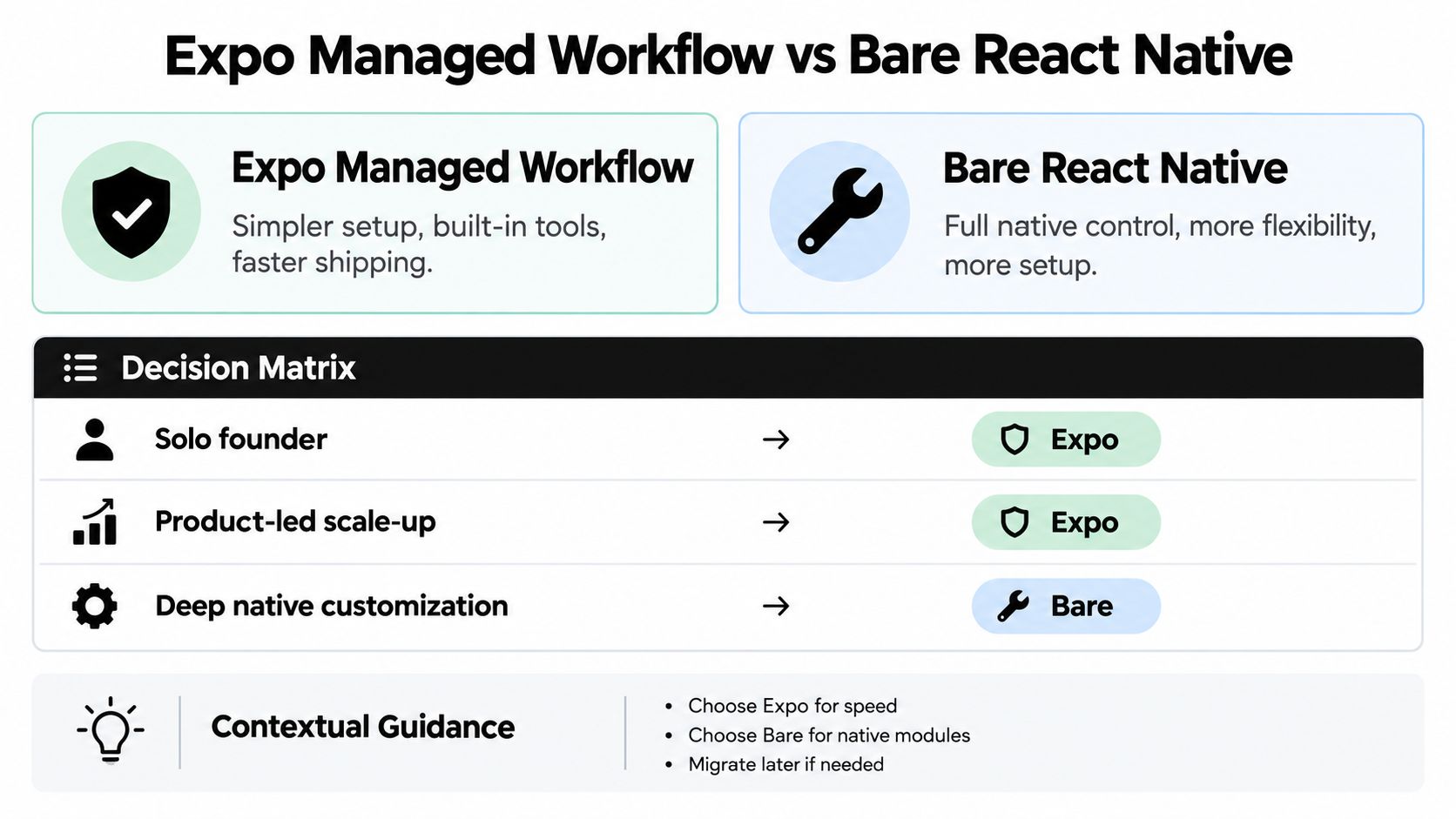
For most new product teams, start with Expo's managed workflow. It reduces setup work and makes it easier to get a real app running while the team validates screens and behavior. Choose bare React Native when a specific native requirement already makes direct control necessary, not because it sounds more serious.
| Criterion | Expo Managed | Expo Prebuild | Bare React Native |
|---|---|---|---|
| Time to first build | Best fit when you want a simple start | Keeps an Expo-based workflow while generating native projects | More native setup to own |
| Custom native code | Use supported capabilities and development builds | Add native configuration and code where required | Direct control over native projects |
| Lock-in risk | A workflow choice, not a permanent product constraint | Adds flexibility while retaining Expo tooling | More responsibility for project configuration |
| Production fit | Good for many conventional product apps | Useful when native changes become part of the roadmap | Appropriate when native control is a core requirement |
Choose by what the first release must do
A solo founder building an account flow and product feed should begin with Expo Managed. A product-led scale-up that needs common device APIs can often keep an Expo-centered workflow as it grows. Expo Prebuild is a useful middle ground when the project needs generated native projects and custom native configuration without abandoning Expo tooling.
Don't pretend a fully managed setup will satisfy a launch requirement it can't support. If the first release depends on a custom in-app purchase flow or background audio, discuss that constraint with engineering before choosing the workflow. The question isn't whether native code is allowed. It's whether the team understands the implications of the code and configuration it plans to own.
Start managed unless the roadmap already requires native modules in the first release.
Expo Go can be useful for early exploration, but it shouldn't define your production plan. Use a development build when the app needs native capabilities beyond that sandbox. If requirements change later, Expo Prebuild can offer a path to native customization, so moving beyond an initial managed workflow isn't automatically a cliff.
The recommendation is practical: use the smallest setup that supports your real product requirements. Reach for Bare when your team has a clear reason to own native projects directly, not as a precaution against a hypothetical future.
Navigation Libraries, UI Kits, and Styling Toolchains
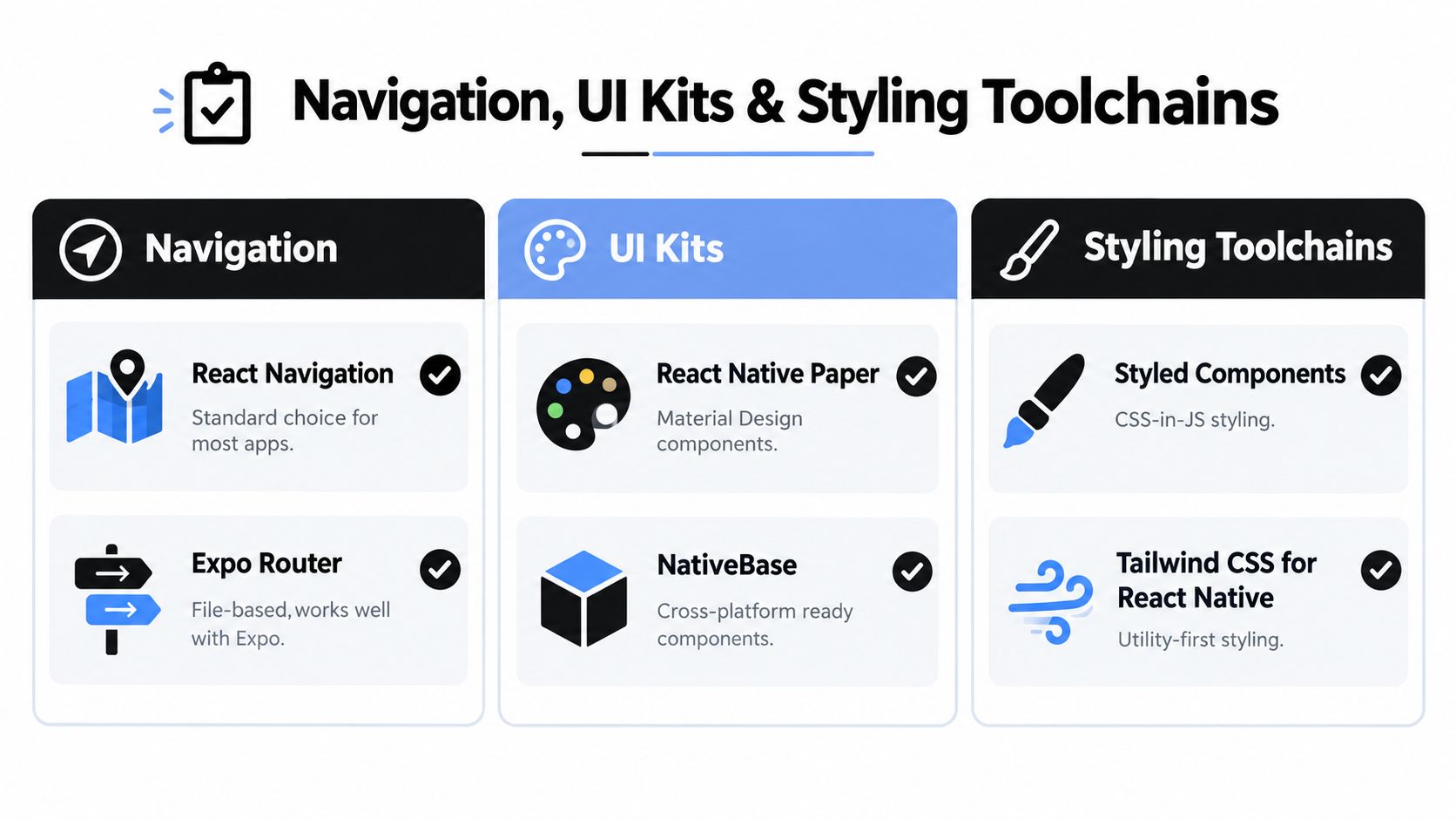
Pick a simple, consistent starting point. For a conventional app, I'd use Expo Router if the project is Expo-based, or React Navigation if the team already knows it and wants to keep its existing patterns. For styling, start with React Native's built-in styles or choose NativeWind if utility classes match how the team works. Don't add a UI kit, styling layer, and several component packages before you know what the product needs.
Make the design system the deciding factor
Navigation comes first. Expo Router's file-based approach can make route organization easy to follow in an Expo project. React Navigation remains a sensible choice for teams already familiar with its conventions or working in an established app. Either can support a clear flow. The important part is avoiding competing approaches to the same navigation problem.
UI kits are shortcuts, not strategy. React Native Paper is a reasonable choice when Material Design components suit the product. Tamagui can appeal to teams building a more custom cross-platform system and willing to invest in its conventions. Gluestack is another option to evaluate against your team's needs. Building from scratch makes sense when the interface is distinctive enough that a general-purpose kit would create more overrides than value.
For a first-pass map of reusable interface patterns, this overview of React Native UI components can help designers and engineers discuss what to build rather than arguing over tools in the abstract. Look at the actual screens: a settings page and a highly branded shopping experience don't need the same design-system strategy.
NativeWind suits teams comfortable with utility-first styling. Tamagui may be worth a closer look when a team needs more structure across a design system or has demanding visual requirements. If strict theming alignment with marketing assets matters, prove the theme on representative screens before building the whole app around a UI kit.
Keep the first setup lean
Before adding a package, answer these questions:
- What problem does it solve? Don't install a library just because a comparison article lists it.
- Does it fit the design system? Test it against real screens, including accessibility and platform details.
- Who will maintain it? Prefer tools the team can debug and upgrade.
- Can it replace something already chosen? Avoid overlapping navigation, styling, and component systems.
A design-heavy product may justify a more deliberate component strategy from the start. For a straightforward MVP, a familiar router, a small set of reusable components, and restrained styling choices are often easier to maintain. Tool sprawl can feel like progress during the first month. It usually creates more decisions than the app needs.
Performance, Memory, and Upgrade Costs
React Native carries a performance tax, and teams usually feel it after launch rather than before. It stays manageable on conventional product screens, but measure it instead of assuming it away. In a published comparison of equivalent simple apps, memory footprints were about 14 MB for native Android, 23 MB for Flutter, and 27 MB for React Native, which put the React Native build roughly 93% above native and about 17% above Flutter (benchmark comparison). Treat those figures as workload-dependent rather than universal, since dependencies, OS version, and build configuration all move the result.
The numbers matter when they turn into friction a user can feel. Cold starts lag on modest Android hardware. Image-heavy feeds hold more memory. Long lists stutter when they render more than the screen needs. A controlled evaluation found native apps generally loaded faster and used less CPU and memory, with the gap widest for image processing and real-time synchronization; the authors' practical advice was to profile demanding workloads and move a proven bottleneck into a native module (performance evaluation).
Measure the hot paths
Profile release builds with production dependencies, never a debug build on a flagship phone. Check cold start separately from steady-state behavior, then watch peak memory during screen transitions, image decoding, and list scrolling.
Stage matters here. A two-person team validating a prototype can accept a higher baseline footprint in exchange for shared code. A product targeting budget Android devices, or one whose value depends on media capture and playback, needs hard budgets set before the stack is locked in. And if profiling shows a native module is unavoidable for the app's central feature, a small team without native iOS and Android experience should ask whether React Native is saving effort or deferring it.
For image feeds, resize assets to their display size and release JavaScript-side objects you no longer need. For long lists, virtualize rather than rendering every row. If a camera or synchronization path is the bottleneck, isolate that work in a native module instead of rewriting the app.
Profile the feature that stresses the device, not the screen that looks busiest.
Plan for maintenance, not just launch
Upgrade risk is the cost most comparison guides skip. The 2025 State of React Native survey reported better debugging as the top developer request, cited by 54% of respondents, alongside concerns about profiling, network tooling, IDE integration, and regressions after New Architecture adoption (survey coverage). Stable does not mean frictionless.
Before a major version bump, check every native module for compatibility, run the upgrade in a branch, re-check accessibility behavior on your core screens, and keep a rollback path someone has tested. Teams several versions behind should schedule the catch-up deliberately rather than letting dependency drift pick the timing. An Expo SDK upgrade planner helps sequence that work.
My line in the sand: skip React Native when the product's core value depends on real-time media, low-latency input, or sustained pressure on device hardware. For standard product interfaces, the tax is predictable. Treat startup time and memory as budgets with owners, and it stays manageable.
Matching the Stack to Real Team Profiles
The solo founder validating an idea needs a believable app flow before investing in a large engineering setup. I'd start with Expo Managed, Expo Router, and a small set of shared components. A prompt-driven prototype tool can help turn a written flow, sketch, or product brief into screens the founder can review with users, but an engineer should confirm the code, data handling, and native requirements before the prototype becomes the production foundation.
The key kickoff question: does the first version need a device capability that changes the workflow choice? If not, build the smallest credible test. A founder can use a mobile app tech stack chooser to frame those early decisions, then bring specific requirements to an engineer rather than asking for a generic recommendation.
The product-led scale-up already has a web product and a team that can own shared business logic. I'd choose Expo as the starting framework, align the app's design tokens with the existing product, and select navigation based on the engineers' familiarity and route structure. Before the team commits, engineering should inventory native dependencies and identify which mobile interactions need platform-specific behavior.
The agency delivering a client MVP needs a repeatable build and a clean handoff. Use an Expo-based workflow unless the client has a defined native requirement, agree on the component and styling approach before screens multiply, and document which parts are prototype-only. A working prototype can bring the client and engineering team onto the same screen early, but it shouldn't conceal unresolved accessibility, data, or integration questions.
A prompt-to-app workflow fits at the start of these projects, when designers and PMs are still clarifying what the product should do. Use it to generate screens, explore alternatives, and make feedback concrete. Keep engineering involved in reviewing navigation, reusable components, and the shape of the code that will be handed off.
The video below offers another look at a visual app-building workflow.
A 90-Day Decision Plan and What Comes Next
A prototype that runs in week three can still be a month away from a build you would ship to users. The difference is a decision sequence: each week answers one question, and the team moves on only once that answer is written down.
- Week one, choose the workflow. Confirm whether the first release needs custom native code. Write down the launch requirements and pick Expo Managed, Prebuild, or Bare against those needs.
- Week two, settle the defaults. Choose navigation and a styling approach, then implement representative screens. Have product and design review the flow while engineering checks that the choices can support the planned features.
- Weeks three to eight, build and validate. Test the core journey on both platforms, gather user feedback, and profile anything that places unusual demands on memory, images, synchronization, or device APIs.
- Weeks nine to twelve, harden the release. Test release builds, verify accessibility behavior, and compare crash-free sessions across iOS and Android. A 2024 Instabug telemetry summary reported a median crash-free session rate of 99.95%, with 99.91% on iOS and 99.80% on Android, and its Android medians included 2.62 ANR errors and 1.12 out-of-memory errors per 10,000 sessions (mobile reliability benchmarks). Treat those figures as telemetry-based reference points. Your own release baseline is what decides whether a build is ready.
The stack you pick in week one also sets your upgrade exposure for years. React Native 0.81 added Android 16 support and experimental precompiled iOS builds that could cut compile times by up to 10x, and the upgrade friction covered earlier in this guide is reason enough to stage New Architecture adoption carefully when a project depends on native modules. Check the release details and your library compatibility before planning around any build-time gain (React Native 0.81 release notes).
Accessibility needs a line in the release criteria. Test screen readers, focus order, labels, text scaling, gesture alternatives, contrast, and reduced motion on both platforms. A screen that demos well can still be hard to use with assistive technology, and catching that in week ten costs far less than catching it after launch.
Start this week. Write down the features your first release must support, name the engineer who owns upgrade testing, and agree which accessibility checks will block a release. Those three decisions will carry your team further than picking tools by popularity.
RapidNative turns prompts, sketches, images, and product briefs into shareable React Native prototypes, with screens and navigation that teams can review together. Use it to make an idea tangible, then invite your team to try RapidNative as part of its design-to-engineering handoff.
Ready to build your app?
Turn your idea into a production-ready React Native app in minutes.
Free tools to get you started
Free AI PRD Generator
Generate a professional product requirements document in seconds. Describe your product idea and get a complete, structured PRD instantly.
Try it freeFree AI App Name Generator
Generate unique, brandable app name ideas with AI. Get creative name suggestions with taglines, brand colors, and monogram previews.
Try it freeFree AI App Icon Generator
Generate beautiful, professional app icons with AI. Describe your app and get multiple icon variations in different styles, ready for App Store and Google Play.
Try it freeFrequently asked questions
What is RapidNative?
RapidNative is an AI-powered mobile app builder. Describe the app you want in plain English and RapidNative generates real, production-ready React Native screens you can preview, edit, and publish to the App Store or Google Play.
Can I export the code?
Yes. RapidNative generates clean React Native and Expo code that you can export at any time. No lock-in, no proprietary format. Hand it to your developers or keep building inside RapidNative.
Is RapidNative free to use?
Yes. You can build apps on the free plan with no credit card required. Paid plans unlock unlimited AI generations, code export, and direct publishing to the App Store and Google Play.
Do I need to know how to code?
No. Most users build apps by describing what they want in plain English. Developers can drop into the code whenever they want more control, but coding is optional.
How long does it take to build an app?
Most users have a working first screen in under a minute. A full MVP usually takes a few hours instead of the weeks or months traditional development requires.