React Native App UI Design: A Practical 2026 Guide
Master react native app UI design in 2026 with proven patterns for components, theming, accessibility, and performance that ship cleaner apps faster.
By Riya
19th Oct 2026
Last updated: 19th Oct 2026
The most popular advice about React Native UI design is to start with the look: pick a component library, match the mockup, and polish the screen. That's backwards. A screen can look finished and still fail when a screen reader can't explain its controls, a thumb can't reach its buttons, or scrolling stutters on a real device.
For a product team, UI design is a contract between product, design, and engineering. It defines what each component does, how it behaves on iOS and Android, and what performance and accessibility standards it must meet. That contract matters even more when screens are generated quickly: a prototype can save time, but it can also reproduce missing semantics and fragile patterns at scale.
Why React Native UI Design Is a Contract, Not a Skin
React Native's value has never been limited to drawing similar-looking screens on two platforms. It lets teams share a component model while rendering platform-native views, which means a reusable button still has to behave like a button on each operating system. Styling is only one part of that agreement. The rest is interaction, accessibility, responsiveness, and performance.
The project's early history makes the point. GitHub's account of React Native's launch records its public release on March 26, 2015, its 10,976 stars during its first week, and its 24,000 stars by December 2015, when it was Meta's second-most-popular open-source project. That response reflected interest in sharing UI implementation across iOS and Android, not in treating mobile interfaces as static artwork.

Define what a component promises
A design system earns its keep when it makes the right behavior easier than the wrong behavior. A shared icon button, for example, should carry its press handler on the interactive container, expose a useful screen-reader name, show a pressed state, and preserve a usable hit area. If each screen implements those details independently, small inconsistencies become product defects.
That same discipline applies to styling and speed. A token should have one clear meaning, and a screen should have a performance expectation that can be tested rather than judged from a screenshot. AI-generated UI is no exception: generated components are safe starting points only when their contract is explicit and reviewed.
For a useful example of how a focused mobile product presents its core interactions, see this Strive Workout Log review. It can help a team discuss which actions need to be immediately clear in a workout-tracking flow, before anyone debates decorative details.
Core UI Building Blocks Worth Standardizing
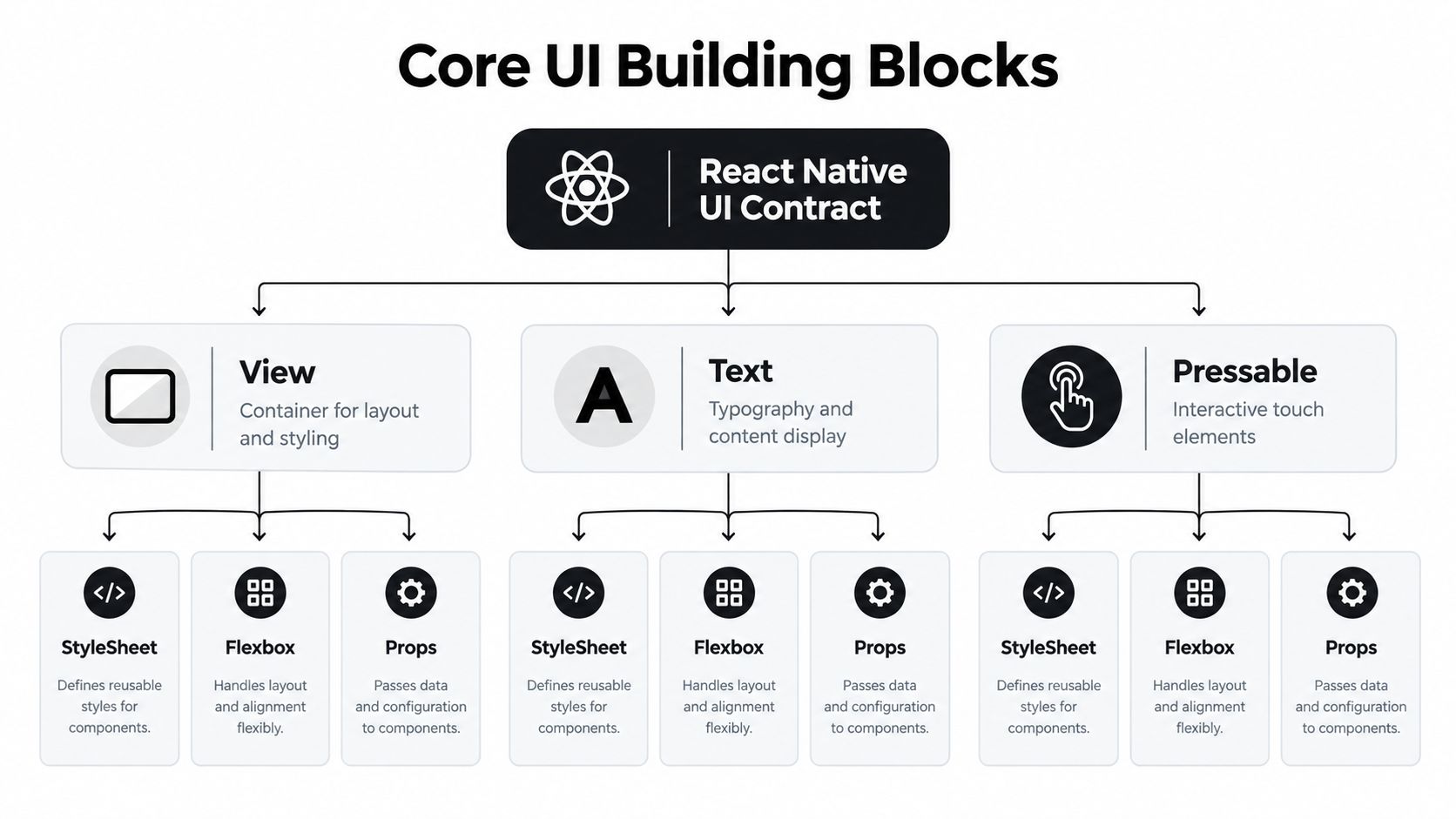
The shared component library should start with React Native's basic primitives, not a long catalogue of one-off screens. View handles layout and grouping. Text owns readable content. Pressable makes interaction state explicit. ScrollView suits short, bounded content, while FlatList is the better fit for long or data-driven collections because it can render items as needed rather than mounting an entire list at once. Image should have a defined sizing and loading behavior, not be dropped into layouts with arbitrary dimensions.
Choose the primitive for the job
Use Pressable when a control needs a defined response to press-in, press-out, or long-press behavior. It gives the team room to express feedback intentionally. A wrapper built around it can keep touch handling, accessibility metadata, and visual state together. That's more reliable than assembling those details separately for every icon and card.
ScrollView is straightforward for a short settings page or a small form where all content can reasonably be present. For a searchable catalogue or a long activity history, FlatList is usually the more appropriate starting point. A list component should make its item key, empty state, loading state, and item interaction clear. Otherwise, the team gets a screen that works with sample content but breaks under real data.
TextInput and Modal also deserve shared patterns. Define how inputs expose labels, errors, and focus, and decide how a modal opens, closes, and returns focus. These decisions are easier to test once than to rediscover across screens. The RapidNative guide to React Native Expo components is a useful reference when deciding which building blocks should be reused.
Practical rule: Build an
IconButtonabstraction before a screen needs its third custom icon action. Android requires interactive controls to expose a focusable touch area of at least 48×48 dp, and custom controls must set that size themselves; built-in components may enforce it automatically, according to Android's app accessibility guidance.
A shared primitive is not bureaucracy. It lets designers and developers talk about a single, testable control instead of a collection of nearly identical implementations.
Choosing a Styling Layer That Survives Export
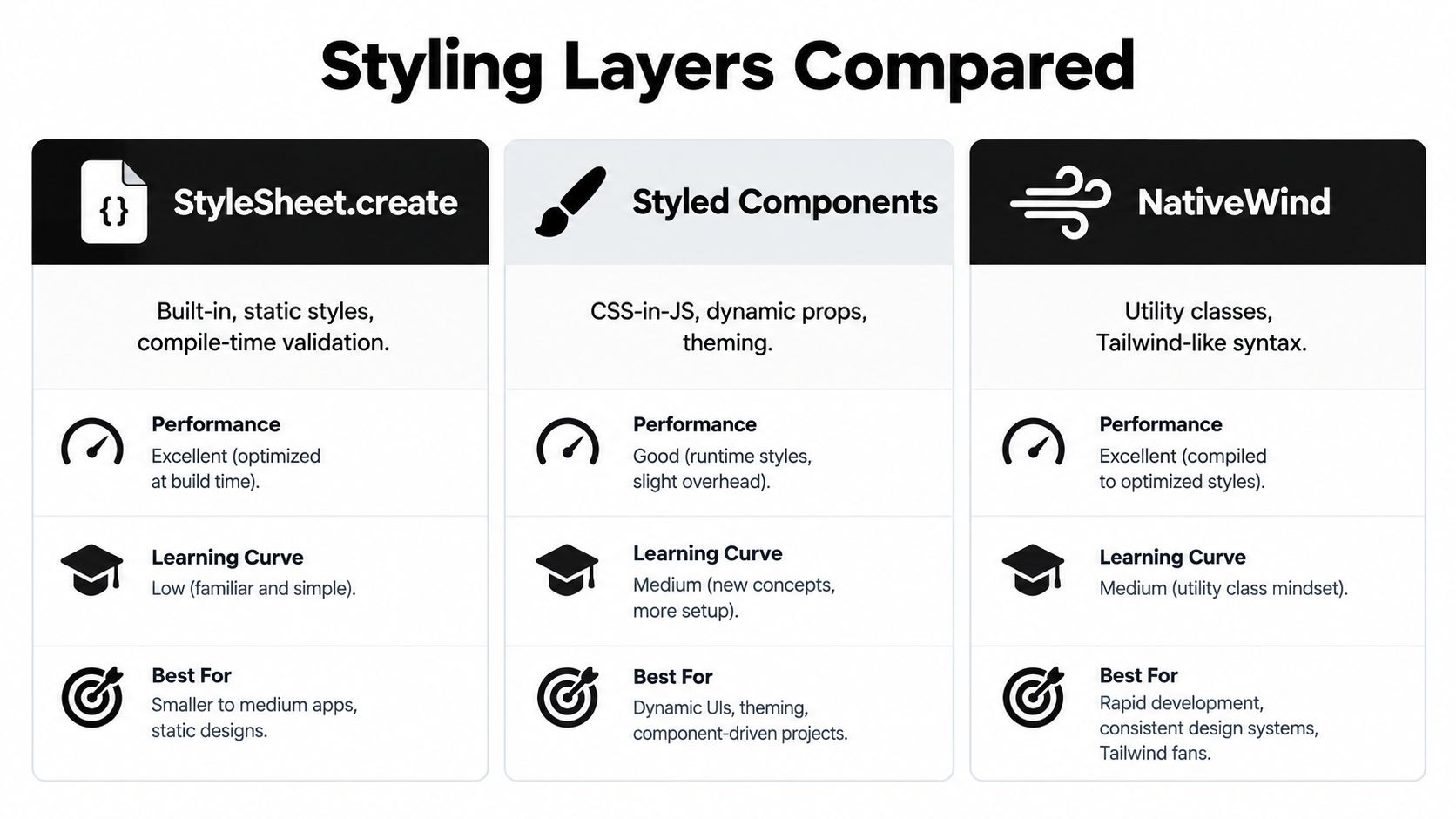
Styling choices become expensive when the first prototype has to grow into a maintainable app. StyleSheet.create keeps styling close to React Native's built-in model and works well when a screen has modest, stable requirements. Its weakness isn't that it can't produce good interfaces. The risk is that a growing set of independent style objects makes shared decisions harder to find and update.
Pick syntax with handoff in mind
A central theme object offers a clear place for shared values, even if components use StyleSheet for their actual layouts. That separation helps a team change a product's visual direction without hunting through every screen. It also gives designers and engineers a common vocabulary for decisions such as surface, spacing, and corner shape.
NativeWind brings utility-class syntax to React Native and can suit teams that already think in reusable classes or Figma-style tokens. It's a practical option for prompt-driven or design-to-code workflows because styling decisions can remain legible and consistent across components. The trade-off is that the team must agree on conventions; utility syntax doesn't prevent inconsistent choices by itself.
Flexbox is a layout system, not a competing styling layer. Teams still need to understand how containers grow, shrink, and align, whether the declarations live in StyleSheet objects or utility classes. Choosing a syntax that looks familiar to web developers may speed up the first pass, but it doesn't excuse checking the result on native devices.
The export question deserves a place in the decision. A prototype's styling should be understandable in the repository where the product will live. Before committing, ask whether a teammate can locate a shared style, change a theme value, and understand a component without knowing how the prototype was created. If the answer depends on a tool-specific workflow, document the handoff or simplify the styling structure before adding more screens.
Responsive Layouts Across Phones, Orientations, and Platforms
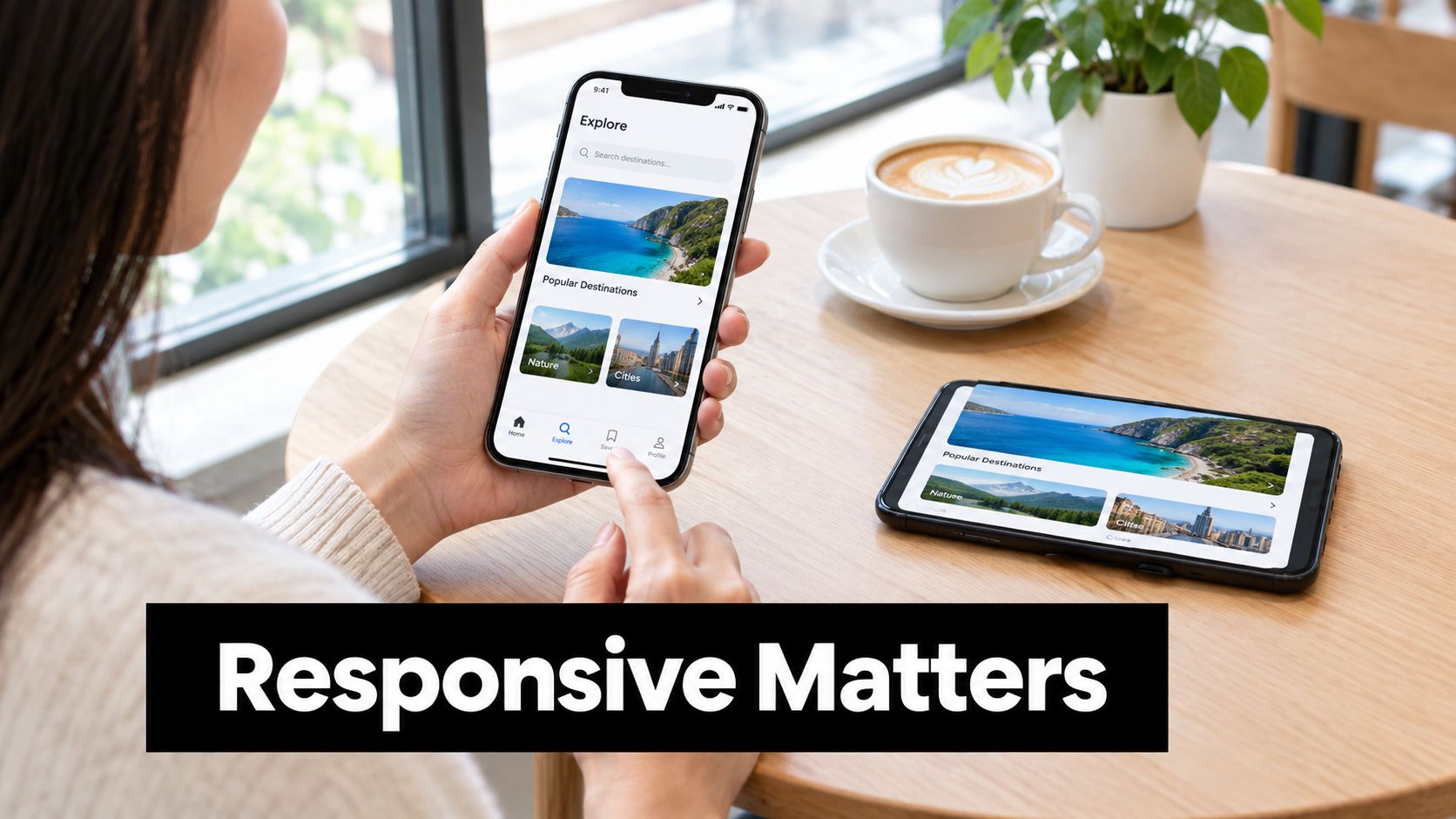
A screen that looks good in a mockup may still be wrong on a small phone, in horizontal orientation, or around a system inset. Responsive design is about preserving a useful layout as available space changes, not shrinking every element until the screen fits.
Adapt the layout before duplicating screens
Use useWindowDimensions when a component needs to respond as the viewport changes. It updates with the window, making it a better fit than reading a fixed value once. Keep Dimensions as a fallback for cases where a live component-level response isn't needed. Prefer flexible widths and sensible maximums to hard-coded measurements that only match the designer's device.
For example, a travel search screen can keep its destination and date fields in a vertical stack on a narrow phone, then place them side by side when the available width makes that easier to scan. The same JSX can switch layout rules at a breakpoint. A tablet may deserve a different composition, such as a persistent results panel beside a map, when stretching the phone layout would leave excessive whitespace or awkward reading distances.
Platform differences should be deliberate. Use Platform.select when an interaction or native convention differs between iOS and Android, rather than branching just to preserve a minor visual preference. Account for notches and home indicators with safe-area handling, including react-native-safe-area-context where it fits the app's setup.
A responsive screen also has to survive orientation changes and enlarged content. Test the actual user task in those conditions: can someone still find the primary action, read the result, and recover from an error? The RapidNative overview of responsive React Native layouts is relevant when planning how to make generated screens adapt rather than merely resize.
Accessibility by Default in React Native Components
Accessibility works best when a component is built to be operated, not merely viewed. For touch targets, the platform units matter: the University of Arizona's mobile guidance specifies a minimum of 44 by 44 points for iOS and 48 by 48 density-independent pixels for Android, as described in its mobile accessibility roadmap. These are logical units, not raw screen pixels.
Android gives teams a useful way to think about visual compactness and usability together. A small icon doesn't need to become visually oversized if its surrounding pressable region supplies the required space. Android's touch-target guidance notes that a 24×24 dp icon can sit inside a 48×48 dp interactive region, roughly 9 mm physically and within the commonly recommended 7–10 mm touchscreen range.
Put semantics in the component contract
Every reusable control should bring four things together: a pressable container with a sufficient hit area, a visible pressed or focused state, a meaningful accessibility label and hint where useful, and a suitable accessibilityRole. The interaction handler belongs on the container, not only on an SVG or image that happens to be inside it.
React Native's accessibility semantics also need platform-aware testing. Its accessible property maps to native focusability on Android and to isAccessibilityElement on iOS, so a component that seems correct in a visual preview may expose a different focus experience across platforms. Use VoiceOver and TalkBack to check the order, name, and state of controls, rather than assuming that a label prop alone makes an interface usable.
Centralize hit-area rules, labels, and roles in shared buttons, tabs, list actions, and icon controls. This avoids scattered fixes and makes the expected behavior visible in the component API. Accessibility isn't a layer to add after the layout is approved. It's part of what the component promises from its first use.
Theming, Tokens, and Design-to-Code Handoff
A theme is the working agreement behind a consistent interface. Designers can make decisions in Figma, a prototype can express them in reusable components, and the repository can preserve them as shared values. When a teammate asks where a surface color or spacing decision comes from, the answer should be a token, not a search through unrelated screens.
| Token Category | Example Keys | Used By |
|---|---|---|
| Color | background, surface, textPrimary, accent | Screens, cards, buttons, inputs |
| Spacing | spaceSmall, spaceMedium, spaceLarge | Layouts, lists, forms |
| Radius | radiusCard, radiusControl | Cards, fields, sheets |
| Typography | body, label, heading | Text, buttons, navigation |
| Motion | durationShort, easingStandard | Press feedback, transitions |
Keep the handoff inspectable
The exact object shape matters less than one rule: components should consume shared values instead of inventing their own. A NativeWind theme extension can map design choices into the styling vocabulary the team uses, while a plain theme object can serve the same purpose in a StyleSheet-based project. Don't maintain both as competing sources of truth. Generate or map one from the other, then document which file owns the canonical values.
At handoff, check that the values in the prototype have clear counterparts in the code, that components use those values consistently, and that a developer can change a shared choice without editing every screen. Also check whether the export includes understandable names and reusable components rather than flattened, screen-specific styling.
A design system should help teams move faster without hiding decisions. The guide to custom design systems for React Native can help teams structure that shared vocabulary. Whatever tools you choose, keep the theme readable to the people who will maintain it after the prototype stops being new.
Performance Budgets for UI That Stays Smooth
A beautiful interaction that drops frames feels broken. React Native's performance guidance gives a practical reference point: at 60 frames per second, a device has about 16.67 milliseconds to produce each frame. Exceed that window and frames can drop, making scrolling, transitions, or touch feedback appear unresponsive.
Treat that figure as an acceptance criterion, not a promise that every device or screen will behave identically. Test the heaviest user journey with realistic data on a mid-range Android device. A static review won't reveal the cost of loading images while a list scrolls or filtering results as someone types.
Find the work that consumes the budget
Start with lists. Avoid rendering a long collection inside a plain ScrollView; use FlatList, provide stable keys, and consider getItemLayout when item dimensions are predictable. For image-heavy catalogues, measure loading and scrolling behavior rather than assuming that a caching library or smaller thumbnail automatically solves the problem.
Then look for avoidable React work. A parent that changes state frequently can trigger unnecessary child renders; React.memo and useCallback can help at component boundaries when profiling shows that repeated rendering is a problem. Don't add memoization everywhere by reflex, since extra complexity without a measured bottleneck makes maintenance harder.
Animations and large image transitions deserve the same scrutiny. Keep expensive JavaScript work out of interactions where possible, and consider Reanimated for animation patterns that should remain responsive while JavaScript is busy. Profile the actual user journey instead of judging performance from the component name or architecture choice.
React Native 0.76 made the New Architecture enabled by default, but that change alone doesn't guarantee a smoother interface. Teams still need to identify the bottleneck, check third-party component compatibility, and validate layout, animation, and input behavior under realistic conditions. The design contract should state what “smooth enough” means for the interaction, then let QA verify it on a device.
Shipping the UI Without Breaking the Contract
A prompt-generated screen and a hand-built screen have the same release requirement: the component has to carry its semantics, usable interaction area, and shared design values into the app. A clickable preview is useful evidence that a flow can be explored. It isn't evidence that the flow is accessible, responsive, or fast under real device conditions.
Before exporting code or moving a prototype into production, use a concrete definition of done:
- Check every interactive element: Confirm that controls have appropriate roles, meaningful labels, working focus behavior, and a usable pressable region.
- Resolve theme values: Verify that colors, spacing, typography, and other shared choices come from the agreed source rather than screen-specific substitutes.
- Exercise real content: Test long lists, empty states, loading, errors, and images with the data and interactions the product will use.
- Test on devices: Run the critical flow on a mid-range Android device and an iPhone with VoiceOver enabled. Check layout, touch feedback, navigation, and screen-reader output.
- Inspect responsiveness: Rotate the device and try a smaller viewport or larger text settings. Fix broken task flows, not just visual differences from the mockup.
Make usability testing part of the loop
A small, repeated study can surface problems while the prototype is still easy to change. Nielsen Norman Group recommends five users for qualitative usability testing when the goal is to find interface problems in an evolving design, noting that this can uncover almost as many issues as substantially larger groups for that purpose, as explained in its guidance on how many test users to include. This is a way to discover usability failures, not to claim that a product works for every demographic.
Recruit participants who match the intended audience and give them the same realistic tasks, such as creating an account, finding a feature, or completing checkout. Watch where they hesitate, tap the wrong control, or lose their place. Fix the most consequential issues, then test the changed flow again as the product evolves.
The release decision should come down to evidence. If the team can explain how components behave, show that assistive technology can operate them, trace the visual system to shared tokens, and demonstrate responsive interactions on devices, the UI is ready to move forward. If not, the missing contract belongs in the prototype work, not in a later cleanup sprint.
RapidNative turns prompts, sketches, images, or product requirements into interactive React Native screens that teams can preview, refine, and export as code. If you're building a prototype, use RapidNative to shape the flow, then check its components against your accessibility, design-token, and performance requirements before shipping.
Ready to build your app?
Turn your idea into a production-ready React Native app in minutes.
Free tools to get you started
Free AI PRD Generator
Generate a professional product requirements document in seconds. Describe your product idea and get a complete, structured PRD instantly.
Try it freeFree AI App Name Generator
Generate unique, brandable app name ideas with AI. Get creative name suggestions with taglines, brand colors, and monogram previews.
Try it freeFree AI App Icon Generator
Generate beautiful, professional app icons with AI. Describe your app and get multiple icon variations in different styles, ready for App Store and Google Play.
Try it freeFrequently asked questions
What is RapidNative?
RapidNative is an AI-powered mobile app builder. Describe the app you want in plain English and RapidNative generates real, production-ready React Native screens you can preview, edit, and publish to the App Store or Google Play.
Can I export the code?
Yes. RapidNative generates clean React Native and Expo code that you can export at any time. No lock-in, no proprietary format. Hand it to your developers or keep building inside RapidNative.
Is RapidNative free to use?
Yes. You can build apps on the free plan with no credit card required. Paid plans unlock unlimited AI generations, code export, and direct publishing to the App Store and Google Play.
Do I need to know how to code?
No. Most users build apps by describing what they want in plain English. Developers can drop into the code whenever they want more control, but coding is optional.
How long does it take to build an app?
Most users have a working first screen in under a minute. A full MVP usually takes a few hours instead of the weeks or months traditional development requires.