A Practical Guide to Turning Web Design to Code for Mobile Apps
Transform your Figma designs or sketches into production-ready React Native apps. Learn a modern, AI-driven workflow for the entire web design to code process.
By Rishav
24th Jan 2026
Last updated: 24th Jan 2026
Turning a design into code isn't the slow, manual slog it used to be. The days of designers handing off static files to developers for a long, painful rebuild are over. Today, it’s an AI-accelerated process where you can take a Figma file, a rough sketch, or even a simple text prompt and get functional, production-ready React Native code in a matter of minutes.
This fundamentally changes how teams build mobile products, closing the gap between a great idea and a working prototype you can hold in your hand.
Rethinking The Design To Code Workflow
The journey from a polished Figma design to a live mobile app was once a minefield of miscommunication and friction. A designer would spend ages perfecting a mockup, only for a developer to spend weeks trying to replicate it pixel-by-pixel in code.
This old, linear approach was not only slow and expensive, but it almost guaranteed the final product would drift from the original vision. It wasn't uncommon for 40% of development time to be lost just fixing inconsistencies between the design files and the coded UI. It was a frustrating cycle for everyone involved. Thankfully, that's no longer the only way. You can learn more about how the entire process of web and mobile app development has been transformed.
The New Collaborative and AI-Accelerated Paradigm
Modern workflows are all about speed, collaboration, and smart automation. The clunky handoff is replaced by a continuous loop where designers, product managers, and developers can actually work together. This is where AI-powered tools shine, acting as a powerful bridge between teams.
The difference is stark.
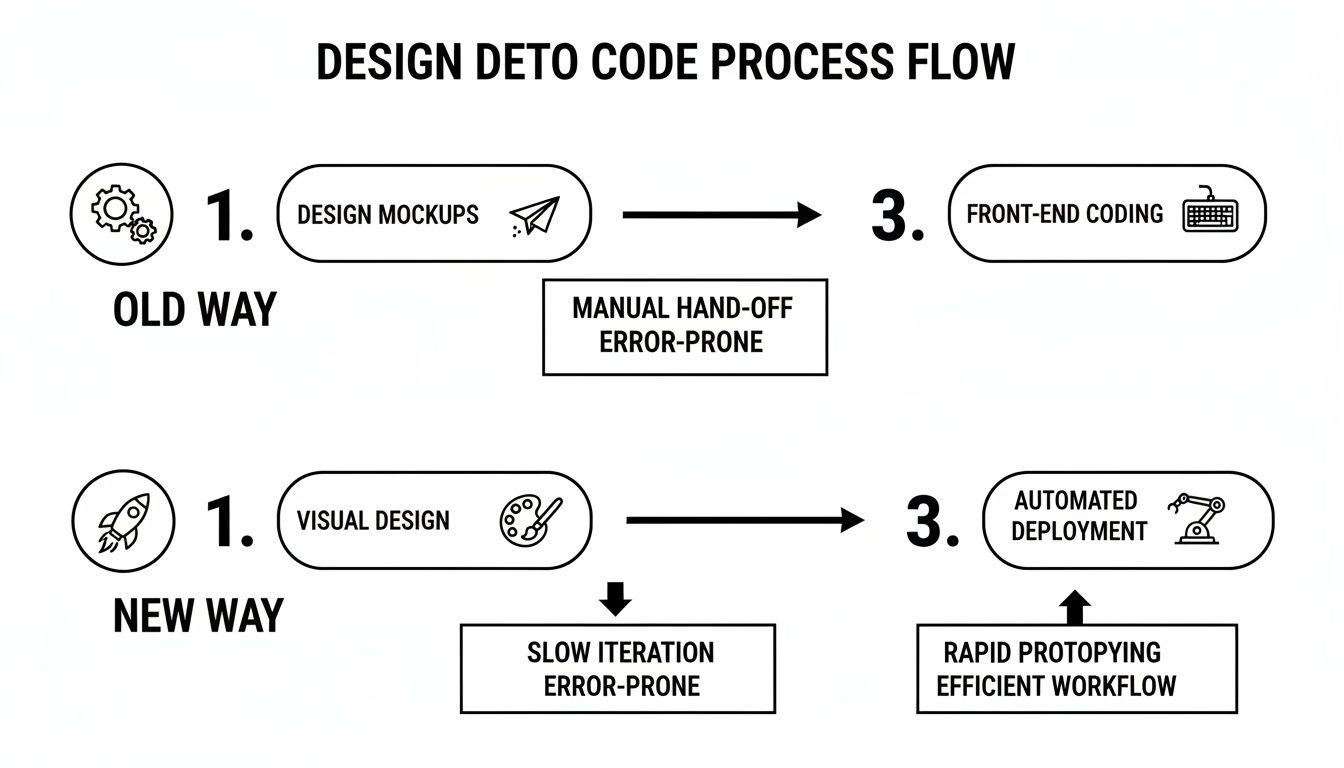
As you can see, today’s methods are built to remove bottlenecks, letting teams jump from a concept to a real, testable prototype almost instantly.
This isn't just a theory; it delivers real-world results. For example, teams using AI code generation are cutting manual UI coding time by an average of 30-50%, letting developers focus on complex logic instead of tedious pixel-pushing.
Let's break down the key differences between these two approaches.
Design to Code Workflow Comparison
The following table gives you a practical look at how the design-to-code process has evolved, comparing the traditional steps with the modern, AI-assisted alternative.
| Phase | Traditional Workflow | Modern AI-Assisted Workflow |
|---|---|---|
| Concept | Static mockups and wireframes. | Dynamic prototypes, sketches, or even text prompts. |
| Handoff | Manual export of assets, specs, and redlines. | Direct import from design tools like Figma. |
| Development | Manual, line-by-line recreation of UI components. | AI-generated, production-ready code. |
| Iteration | Slow feedback loops and extensive rework. | Real-time chat-based edits and instant previews. |
| Integration | Time-consuming integration of UI into business logic. | Clean, component-based code ready for immediate use. |
This shift means the entire product team is empowered to build, not just developers. A founder can test an idea from a whiteboard sketch, a designer can turn a Figma file into an interactive prototype, and a developer can generate boilerplate UI code in seconds.
The goal is simple: let everyone on the team contribute to building the actual product, faster.
This guide will walk you through this new workflow, step-by-step. We'll cover everything you need to turn design concepts into functional React Native components, setting you up to build better mobile products in a fraction of the time. For a deeper look at the technology behind this shift, check out our article on design-to-code automation.
Getting Your Designs Ready for AI Translation
Here’s a hard-won lesson from the trenches: great code always starts with a well-prepared design. Before you can even think about turning your web design to code, you have to get the design file itself structured for success. This isn't just about making things look good; it's about giving the AI a logical blueprint it can actually understand and translate into clean React Native components.
Think of it like handing a recipe to a chef. If your ingredients are all over the place and the steps are a mess, you’re going to get a disaster. But a clear, well-organized recipe? That’s how you get a perfect dish. It's the exact same principle here.
Build a Structure That Leads to Predictable Code
The single most important factor for a clean AI handoff is structure. In a tool like Figma, that means you need to live and breathe Auto Layout. When you use Auto Layout, you’re essentially defining how elements should behave and respond to each other, which maps almost perfectly to Flexbox in React Native.
Your layer organization is just as critical. I've seen designs with hundreds of layers named "Rectangle 27" and "Group 143," and the resulting code is always a nightmare.
- Name Your Layers Logically: Instead of generic names, use descriptive ones like
UserProfileCardorPrimaryButton. The AI will often use these to name the generated React Native components. - Embrace Components: If you find yourself copying and pasting an element, stop. Turn it into a Figma component. This signals to the AI that it should create a single, reusable component in the code—a fundamental best practice.
- Group Intelligently: Keep related elements together. A user’s avatar, name, and online status shouldn't be floating around as separate layers; they belong inside a
UserInfoframe.
A well-structured design isn't just a "nice-to-have" for developers anymore. In an AI-driven workflow, it's the single biggest factor determining the quality and usability of the initial code output.
Establish a Clear Design System
Beyond just the structure of your layouts, a consistent design system is your best friend. This means defining your core visual rules—often called design tokens—which serve as the single source of truth for your app's entire UI.
When an AI sees that you’re consistently using these predefined tokens, it can generate much cleaner and more systematic code.
For example, don't just eyeball a shade of blue every time you need it. Define a primary color token like colors.primary.blue and use it everywhere. We dive deeper into bridging this gap in our guide on the Figma to code process.
Taking the time to do this prep work upfront saves you countless hours of refactoring down the road. You’re giving the AI a high-quality blueprint, which means the code you get back is more organized, scalable, and much closer to production-ready from the get-go.
Generating Your First UI from Any Source
This is where the magic happens. After prepping your designs, you're ready to see how an AI-driven web design to code workflow really pays off. The whole point is to bridge the gap between concept and functional UI as fast as humanly possible, and thankfully, modern tools give you a few different ways to jump in, no matter how your team works.
You’re not stuck with one rigid method. The beauty of this process is its flexibility—you can start with a pixel-perfect design, a rough sketch on a whiteboard, or even just a simple text description. This is a game-changer because we all know that big ideas rarely start in a polished design file.
From High-Fidelity Figma to a Live App
If your team lives and breathes in Figma, this is your most direct route. You just hand over a link to your design file, and the AI takes it from there. It digs into your components, auto-layouts, and design tokens to translate everything into clean React Native code.
What you get back isn't just a static picture of your app; it’s a live, interactive preview. This is that first crucial milestone where a visual concept starts feeling like a real product you can actually touch and use.
From a Simple Image to a Working Prototype
But what if your idea is still just a scribble on a napkin or a screenshot of an app that caught your eye? This is where an image-to-app workflow becomes incredibly useful. You can upload any static image, and the AI uses computer vision to figure out the layout, text, and UI elements.
I’ve seen this work brilliantly for:
- Whiteboard Sketches: Snap a photo of a team brainstorm and turn it into a clickable prototype in minutes. It’s perfect for capturing momentum.
- Low-Fidelity Wireframes: Upload a basic wireframe from a tool like Balsamiq or even a simple hand-drawn sketch.
- Inspiration Screenshots: Grab a screenshot of an existing app to use as a launchpad for deconstructing and rebuilding its UI your own way.
This approach is fantastic for getting quick validation. You can test user flows and get feedback well before you invest a ton of time and resources into a full-blown design cycle. It completely lowers the barrier to entry for trying out new ideas.
The key takeaway is that you can spin up a functional starting point from almost any visual source. This eliminates the friction that so often stalls projects in those early, creative stages.
Describing Your Vision with a Text Prompt
Finally, you can start with nothing more than an idea and a few words. By describing the screen you want to build in a text prompt, you can generate a UI from thin air. For instance, a product manager could type: "Create a login screen with our company logo at the top, input fields for email and password, a primary 'Log In' button, and a small 'Forgot Password?' link underneath."
The AI interprets this prompt and scaffolds the necessary React Native components with some basic styling already applied. This is a huge time-saver for developers who need to quickly mock up a new screen or for product managers who want to visualize a flow without having to create any design assets at all.
No matter which path you choose, the outcome is the same: clean, production-ready code that turns your vision into a reality.
Fine-Tuning Your App with Simple Prompts
That first version of your app, fresh from the design file, is a fantastic starting point. It’s a huge leap forward, but it's never the finished article. This is where you really start to see the magic of working with an AI partner. Instead of creating a ticket, writing up notes, and waiting for a developer to make changes, you can just start a conversation and guide the code yourself.
This changes the whole dynamic of turning a web design into code. It’s not just for developers anymore. I've seen founders, designers, and PMs jump right in and start shaping the final product, getting a real-time view as their feedback turns into code.
Nudging the UI and UX into Place
Think of the AI as your co-pilot. You can speak to it in plain English, telling it exactly what you want to change, just like you would with a person sitting next to you. It's surprisingly effective for everything from tiny visual tweaks to major layout overhauls.
For instance, you can easily dial in the styling with simple requests:
- Color Tweaks: "Change the main button color to our brand's dark blue, #0A2540."
- Typography: "Bump up the font size on all H2 titles to 24px and make them bold."
- Icons: "Drop a search icon into the right side of the header."
But it’s not just about colors and fonts. You can reshape entire screens on the fly. I've watched teams completely rework a component's structure with a couple of sentences, which would have easily taken a developer an hour or two of manual work.
This chat-based workflow turns iteration from a slow, formal process into a quick, creative conversation. You can play around with different ideas instantly instead of waiting for someone's schedule to open up.
Real-World Examples of Prompt-Driven Changes
Let's get practical. Imagine you just generated a dashboard screen and want to polish its layout and add some functionality.
Scenario 1: Reworking a Layout
The initial design shows a single column of data cards, but you quickly realize a grid would work much better on tablets and desktops.
- Your Prompt: "Rearrange the dashboard cards into a two-column grid. Add 16px of space between each card."
- What Happens: The AI refactors the layout code, applying the flex or grid properties needed to create the exact structure you described.
Scenario 2: Adding a New Component
You decide the screen is missing a clear call-to-action to get the user moving.
- Your Prompt: "Add a floating action button to the bottom-right corner. It should have a plus icon."
- What Happens: A brand new, correctly positioned button component is generated and dropped right into the screen's code.
Scenario 3: Building a New Screen from Scratch
You can even use an existing screen as a jumping-off point to create something entirely new.
- Your Prompt: "Create a new 'Settings' screen. Give me a toggle switch for 'Dark Mode' and another one for 'Push Notifications.'"
- What Happens: The AI scaffolds a new screen file, adds the components you asked for, and might even offer to link it up in your app's navigation.
This tight feedback loop—prompt, see the result, and refine again—is what cuts down development time so dramatically. It completely closes the gap between an idea and a working piece of the product, letting everyone on the team have a direct hand in building it.
Getting Your Code Ready for Production
A slick prototype is a great start, but its true test is the quality of the code it generates. This is where the rubber meets the road—the final, critical stage where you validate the UI with real users and hand off something your engineering team can actually use. This is how you move from a rapid prototype to a serious development project.
The aim here isn't just to gather feedback. It's to get meaningful feedback by putting the prototype where it belongs: on a real device, in a user's hands.
Share a Live Prototype for Instant Feedback
Modern AI-powered tools have made on-device testing incredibly straightforward. Forget the days of struggling with complex builds or provisioning profiles. Now, you can generate a shareable link or a simple QR code, allowing anyone—from stakeholders to potential customers—to run the app instantly on their own phone.
This immediate, tangible experience is a total game-changer for collecting feedback.
- For Stakeholders: A product manager can scan a QR code during a meeting and start demoing a new user flow on their own phone. This sparks much more productive, grounded conversations.
- For Usability Testing: A designer can send a link to test participants and watch them interact with the app in their natural environment, revealing insights you’d never catch in a desktop preview.
- For Team Alignment: The entire team can have the latest prototype running on their devices, making sure everyone is working from the same script.
This frictionless feedback loop is incredibly powerful. It means you can go from a simple prompt to a live, testable app in the hands of real users, all in the same afternoon.
Export Clean Code for a Smooth Handoff
Once the UI has been thoroughly tested and everyone has signed off, the final step is exporting the code. This is where modern AI builders really shine compared to older, more rigid platforms. You're not just getting a visual mock-up; you're getting clean, human-readable React Native code.
This isn't just throwaway code. It's built to be immediately useful for your engineering team. It’s modular, follows standard conventions, and uses the same modern stack (like Expo and NativeWind) that a seasoned developer would choose for a new project. The process is as simple as exporting the code as a ZIP file or pushing it directly to a Git repository.
From there, your developers can grab these generated components and screens and integrate them directly into your existing codebase. They aren't starting from a blank page; they're starting with a fully-realized, production-quality UI. This frees them up to focus their expertise on the truly complex parts of the app, like business logic and backend integrations, which can massively speed up your time to market. To see this in action, check out our deep dive on using a product code builder.
Answering Your Team's Top Questions About AI-Powered Development
Bringing any new tool into your workflow, especially one driven by AI, is bound to raise a few eyebrows and a lot of questions. When I talk to teams about moving from web design to code with this kind of assistance, the same concerns pop up again and again. Let's tackle them head-on so you can see exactly how this fits into a real-world process.
Getting these practical points sorted out helps everyone, from founders to the devs in the trenches, understand the real value and where to apply it for the biggest impact.
Can I Actually Use This for an Existing App?
Yes, and honestly, this is where it often shines the brightest. You're definitely not stuck only building brand-new projects. Many teams I've worked with use this exact workflow to quickly prototype and build out new features for apps that are already live.
Think about it: you can generate the UI for a completely new user flow, get feedback from the team, and then export the finished code. Since the output is just clean React Native, your developers can drop those new components and screens right into your existing codebase. It’s a massive shortcut for new UI work, freeing up your team to spend their time on the tricky business logic.
How Close Is the Design-to-Code Translation, Really?
The final accuracy really comes down to the quality of your design file. If you hand the AI a well-structured design—one that uses Auto Layout, has defined styles, and a logical component structure—you're going to get an incredibly faithful translation. In my experience, the initial output is usually about 90-95% of the way there.
Sure, you might need to make a few tiny, pixel-perfect tweaks here and there. But the real magic isn't just in that first pass; it's what comes next. Using simple, chat-based prompts, you can close that last 5-10% gap in a matter of minutes without ever having to dig into the code yourself.
It's less about a perfect one-shot translation and more about getting a rock-solid foundation that you can polish to perfection with a few quick, conversational instructions.
Is the Code It Exports Actually Usable?
Absolutely. This is the single biggest difference between modern AI tools and the "no-code" platforms of the past. The goal here is to generate clean, readable, and modular code that a developer would be happy to work with. It isn't some black-box, proprietary mess.
Your engineering team gets code built with the tools they already know and trust, like React Native, Expo, and NativeWind. It’s the same stack they’d probably choose if they were starting from scratch. They can take it, read it, and extend it without any friction.
What if I'm Starting with Just a Napkin Sketch?
That's a fantastic place to start. The whole image-to-app capability was built for that exact moment of inspiration. It’s all about getting from a raw idea scribbled on a whiteboard to a working prototype on a device as fast as humanly possible.
Just snap a photo of your sketch. The AI will do its best to interpret the layout, buttons, and text blocks to give you a functional first draft. From that point, you're back in the driver's seat, using prompts to refine the UI, add real components, and bring your rough vision to life. It’s the quickest way I know to make a brand-new idea feel real.
Ready to turn your ideas into a real mobile app faster than ever? At RapidNative, we built a collaborative, AI-native builder that generates production-ready React Native code from prompts, sketches, or designs in minutes. Stop the endless cycle of rework and start building. Try it for free at rapidnative.com.
Ready to build your app?
Turn your idea into a production-ready React Native app in minutes.
Free tools to get you started
Free AI PRD Generator
Generate a professional product requirements document in seconds. Describe your product idea and get a complete, structured PRD instantly.
Try it freeFree AI App Name Generator
Generate unique, brandable app name ideas with AI. Get creative name suggestions with taglines, brand colors, and monogram previews.
Try it freeFree AI App Icon Generator
Generate beautiful, professional app icons with AI. Describe your app and get multiple icon variations in different styles, ready for App Store and Google Play.
Try it freeFrequently asked questions
What is RapidNative?
RapidNative is an AI-powered mobile app builder. Describe the app you want in plain English and RapidNative generates real, production-ready React Native screens you can preview, edit, and publish to the App Store or Google Play.
Can I export the code?
Yes. RapidNative generates clean React Native and Expo code that you can export at any time. No lock-in, no proprietary format. Hand it to your developers or keep building inside RapidNative.
Is RapidNative free to use?
Yes. You can build apps on the free plan with no credit card required. Paid plans unlock unlimited AI generations, code export, and direct publishing to the App Store and Google Play.
Do I need to know how to code?
No. Most users build apps by describing what they want in plain English. Developers can drop into the code whenever they want more control, but coding is optional.
How long does it take to build an app?
Most users have a working first screen in under a minute. A full MVP usually takes a few hours instead of the weeks or months traditional development requires.