React Native App for Android: Build, Test and Publish
Step-by-step guide to building, testing and publishing a React Native app for Android: Expo setup, device testing, release signing and Play Store steps.
By Riya
29th Oct 2026
Last updated: 29th Oct 2026
Your app runs fine in Expo Go. You tap through login, scroll the home feed, submit a form, and everything looks ready. Then you build the signed version, install it on a budget Android phone, and sign-in fails, a long list stutters, and a notification never arrives.
That gap is normal, and it's where development time gets lost. Building a React Native app for Android isn't just writing screens in JavaScript. It's choosing the right SDK settings, testing on hardware your users own, and proving the release build works before Google Play sees it. StatCounter reported Android held 69.17% of worldwide mobile operating-system market share in September 2026, compared with 30.81% for iOS, according to StatCounter's Android version market share data. That reach is the prize. The device variety behind it is the work.
What to Install Before Your First Android Build
The install that blocks most first builds is Android Studio with a mismatched SDK. You can have perfect JavaScript and still get nowhere if the SDK platform, build-tools, or platform-tools aren't installed. Get the toolchain right first, then write code.
You need four pieces working together. Node.js LTS runs the JavaScript toolchain, Metro, and Expo CLI. A JDK, usually JDK 17 for current React Native versions, lets Gradle compile the Android project. Android Studio provides the Android SDK, including the SDK platform for the current API level, platform-tools (which gives you adb), and build-tools.
Two ways to start
Expo generates the native project for you and gives you the fastest start through Expo Go. I would pick it unless you already know you need custom native code on day one. The bare React Native CLI suits teams that need direct control of the android/ folder from the start.
Set up one emulator and one physical phone now, not later. Emulators can't reproduce real thermal throttling, OEM battery limits, or push behavior, and you'll need both for device testing.
Before you create anything, tick these off.
- Android Studio installed: SDK Manager opens without errors.
- Current SDK platform installed: Matches the API level you'll target.
- Emulator booted: A virtual device reaches the home screen.
- Physical phone connected: USB debugging is enabled and authorized.
- Clean project path: Your folder path has no spaces, which avoids obscure Gradle failures.
How to Create and Run Your First Android App
Start with Expo unless you have a specific reason not to. It removes most native configuration while you prove the product idea, and you can take ownership of the native code later.
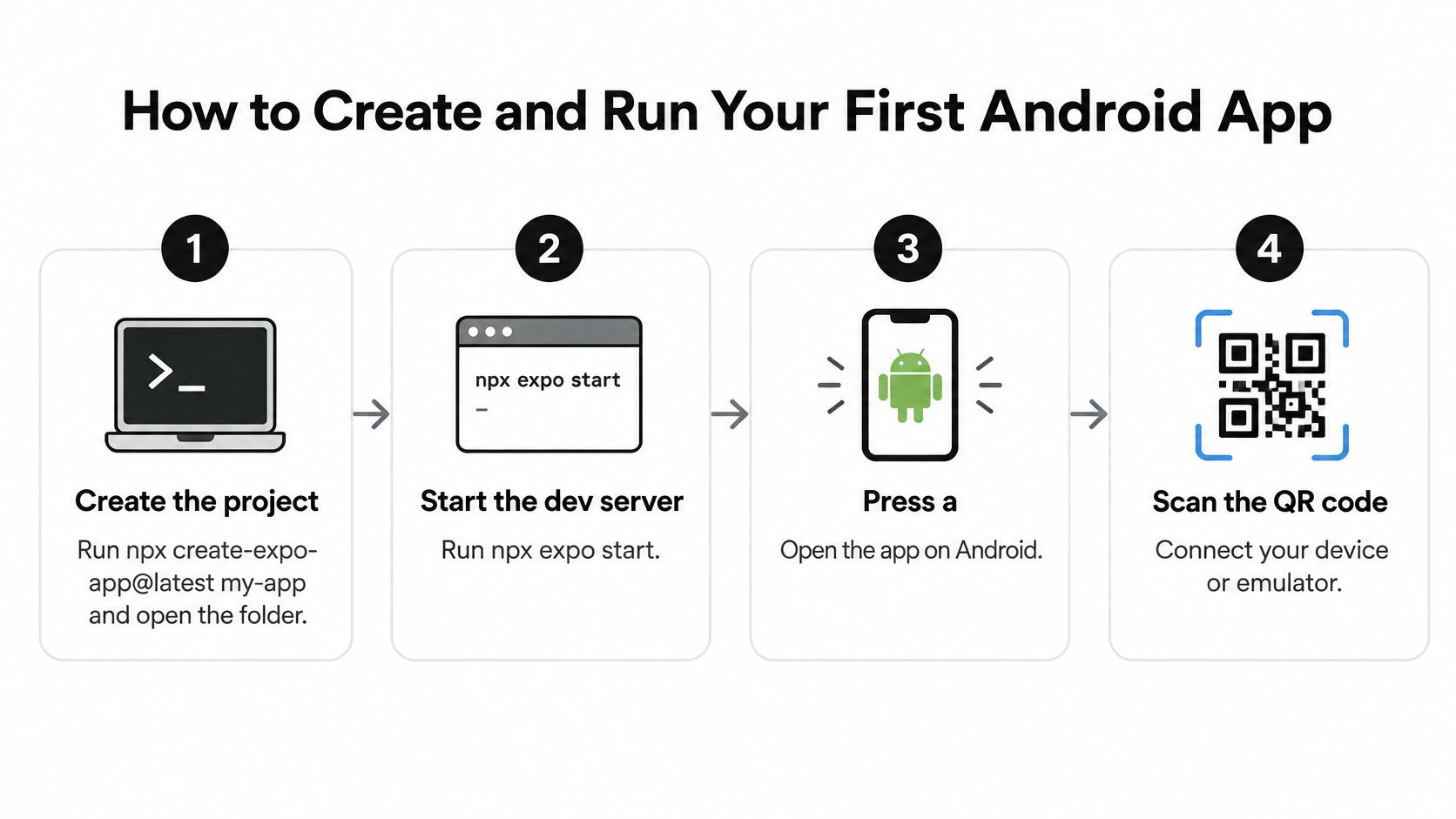
- Create the project. Run
npx create-expo-app@latest my-appand open the folder. This gives you a working React Native and Expo scaffold with TypeScript and routing already wired up. - Start the dev server. Run
npx expo startto launch Metro, the bundler that serves your JavaScript to the device. - Open it on Android. Press
ato open the app on a running emulator, or scan the QR code with Expo Go on a physical phone. Expo Go is fine for layout and navigation work. - Edit the home screen. Change some text and confirm Fast Refresh updates the device. If nothing changes, check that Metro and the device are on the same network and the emulator is connected.
- Move to a development build. Run
npx expo run:androidwhen you need custom native modules. This compiles the Android project and installs it on your connected device, which Expo Go can't do. - Decide who owns the
android/folder. Keep it under prebuild control so Expo regenerates it, or commit it as your own native code. Write that decision down, because it affects every future upgrade.
Starting from a prompt or PRD instead
If you're starting from a prompt, sketch, or PRD rather than a blank scaffold, RapidNative can generate the initial screens, navigation, and components as React Native code. You can export that code to your own repository and continue in the same Expo workflow without lock-in. That shortens the blank-screen phase, but it doesn't change the Android steps above. You still run, build, and test the exported project the same way.
Practical rule: Treat Expo Go as a preview tool, not proof of Android readiness. The first development build on a real phone is your first honest signal.
If your team is distributed, agree on who owns the Android build early. Questions about signing, device access, and release ownership get expensive when they're settled at launch. TekRecruiter's a guide to offshore mobile engineering is useful context if you're deciding how to structure that work across locations.
Your scaffold is healthy when two things are true. The home screen renders on the emulator and on your phone, and the bundle compiles without warnings. If either fails, fix it now. A shaky scaffold makes every later Android problem harder to isolate.
Android Settings That Decide Whether a Build Works
Some Android settings are annoying. A few are permanent. Start with the ones you can't undo, because a wrong package name or a reused versionCode will stop a Play upload cold.
In an Expo project, most of these live in app.json or your app config, with expo-build-properties for SDK levels. In a bare project, they live in android/app/build.gradle. The names differ slightly, but the consequences are identical.
| Setting | Where it lives | What to set | What goes wrong if wrong |
|---|---|---|---|
| Package name | app.json android.package | Unique reverse-domain ID such as com.yourcompany.appname | Cannot be changed once the Play listing exists |
| versionCode | app.json android.versionCode | Integer that rises on every upload | Play rejects an upload with a code it has already seen |
| versionName | app.json version | Human-readable release label such as 1.0.0 | Shown to users; does not block the build |
| compileSdkVersion | expo-build-properties or build.gradle | Current API level required by Google Play | Upload rejected or flagged for an outdated SDK |
| targetSdkVersion | expo-build-properties or build.gradle | Current API level required by Google Play | Play policy warnings or rejection |
| minSdkVersion | expo-build-properties or build.gradle | Lowest Android version you actually support | Too high drops users; too low adds test load on old devices |
| Permissions | android.permissions in app.json | Only what features need, such as CAMERA or POST_NOTIFICATIONS | Unused permissions invite Play review questions |
| Adaptive icon | android.adaptiveIcon | Foreground and background layers with the logo inside the safe zone | Icons clipped or distorted on some launchers |
Treat SDK levels as a release gate, not paperwork. Android's official core-quality checklist requires an app to run on the latest public Android version without crashing or severely impairing core functionality and to target and build with the latest SDK through targetSdk and compileSdk. It also recommends emulators configured for the most common form factors in your target audience. So verify a current phone, an older supported version, different resolutions, and a tablet or foldable emulator before you call an MVP ready.
Crossing into native code
When JavaScript isn't enough, follow the sequence in order. Define the JavaScript-facing API first, implement the Android side in Kotlin or Java, configure Codegen for a Turbo Native Module, register it with a ReactPackage, then exercise it from JavaScript on a real device. Skipping registration is the classic mistake. The class exists, but React Native can't discover it.
Keep module initialization lazy so unused native features don't tax startup. Isolate camera, Bluetooth, payments, and notifications behind typed interfaces. Your screens stay portable, and the Android-specific risk stays in one place you can test hard.
Debugging on Real Devices and Emulators
Get a physical phone connected first, because it's the fastest route to truth. Enable Developer options and USB debugging, connect the phone, and confirm it with adb devices. If the app can't reach Metro over USB, run adb reverse tcp:8081 tcp:8081.
The setup below is the working environment you're aiming for, with the device and your tooling side by side.
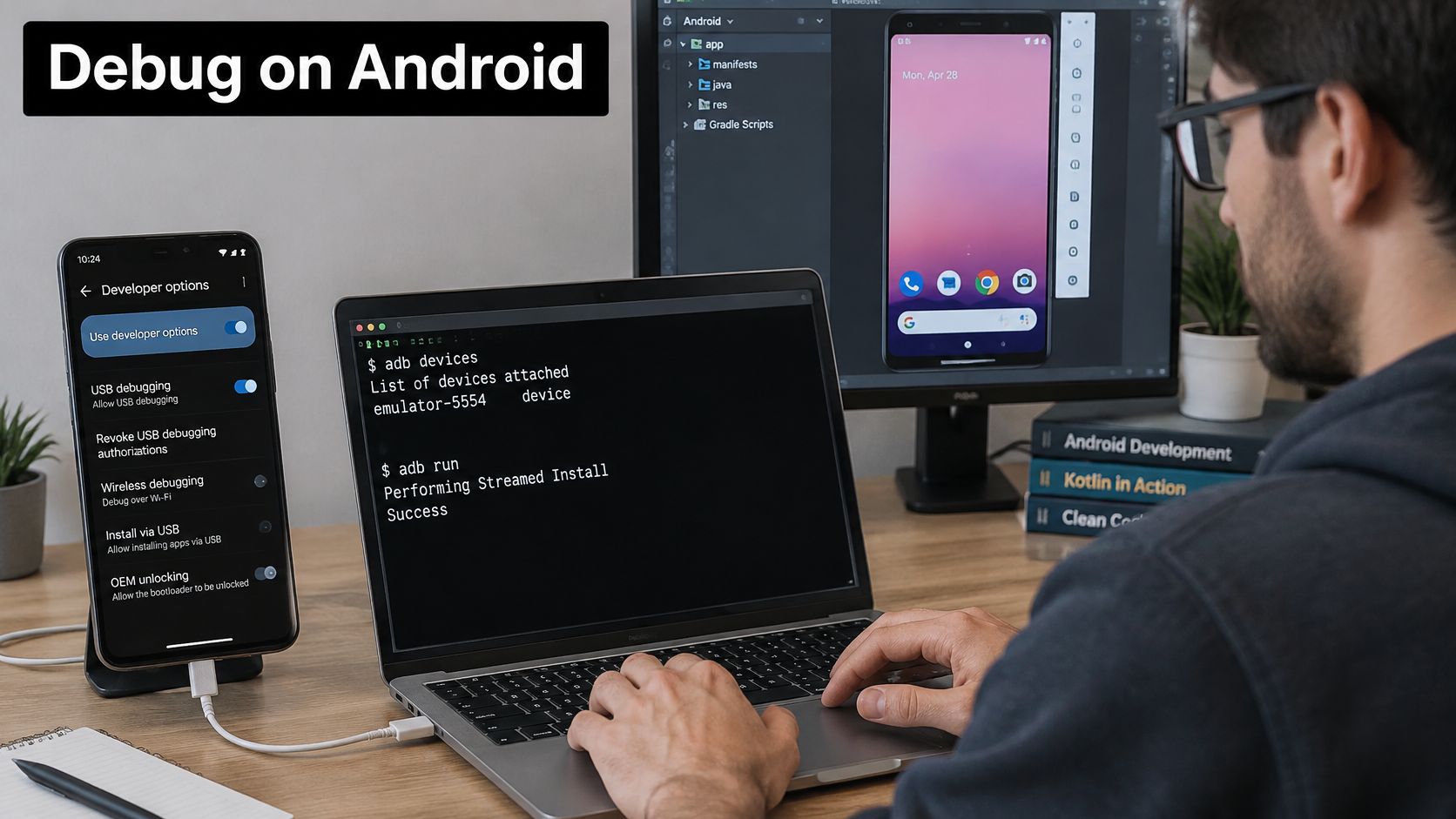
Don't trust debug-mode timing. Hot reload, logging, and non-minified bundles distort startup and frame behavior, and Expo Go hides problems that only appear in a signed, minified build. A screen that feels smooth in debug can still jank in release, and the reverse happens too. Measure the build your users will run.
Tools that earn their place
adb logcat: Filter by your package name or error level to find native crashes that never reach JavaScript.- React Native DevTools: Use it for JavaScript errors and network inspection during development.
npx expo start -c: Clears cached bundles when the app behaves strangely after a config change.- Layout Inspector: Android Studio's tool for screen-level layout problems, such as clipped or overlapping views.
- Systrace: Profile a release-like build and capture traces during your worst interaction, such as the longest list or heaviest navigation path.
Set a baseline before you optimize anything. Record cold and warm startup, frame time during scrolling, memory after repeated route changes, and crash-free execution. Report pass rates by device tier instead of quoting a universal benchmark, because a flagship result tells you little about a budget phone. This practical guide to debugging apps goes deeper on building that routine.
The walkthrough below shows the device workflow in action, which is worth watching before your first long debugging session.
Keep a short log of what changed between builds. When startup regresses, you want to trace it to a specific commit, not guess across two weeks of work. That habit costs minutes and saves days.
Choosing Devices and Testing Stability Before Launch
You can't test every Android phone, so test the right four or five. Build a small matrix that covers performance tiers, your oldest supported version, and the newest public release. Test the low-end row first, because it's where freezes and slow image decoding show up.
| Device tier | Example to test | Android version | What to check |
|---|---|---|---|
| Low-end | Budget phone sold in your main market | Oldest version you support | Cold start time, image decoding, scroll smoothness |
| Mid-range | Most common mid-range phone in your user base | One version behind current | Form submission, navigation, return from background |
| Flagship | Current top-tier phone | Latest public Android | New permission prompts, animations, notifications |
| Tablet or foldable | Emulator with a large-screen profile | Latest public Android | Layout breakpoints, rotation, split views |
| Poor network | Any device with network throttling enabled | Any | Offline state, API retries, loading placeholders |
Add lifecycle and network abuse to every tier. Throttle the connection, go offline mid-request, interrupt a session, rotate during a form, deny a permission, and return from the background after a long pause. Users do all of this daily. If your app only survives the happy path, it isn't ready.
A demo that renders correctly can still fail real users. If taps feel unresponsive on a budget phone, your users will call it broken, whatever the crash log says.
Stability here means responsiveness, not just absence of crashes. Android's quality guidance specifies that an app should not block the UI thread in a way that causes Android Not Responding errors, recommends enabling StrictMode during testing with no red performance warnings, and recommends the Google Play pre-launch report plus Android Vitals monitoring after deployment. Exercise startup, navigation, network loading, form submission, image-heavy screens, and background and foreground transitions while watching for freezes.
Say a checkout form submits instantly on a flagship. On a budget phone, a large image list decodes on the JavaScript thread, the submit tap appears ignored, and the user taps twice and creates two orders. That's a stability bug your flagship will never reveal.
Scope decides how much matrix you can afford, so settle it before testing starts. Bruce and Eddy outline scoping a startup's first mobile app in a way that helps founders cut features before QA cost balloons. For test planning itself, this overview of how to test mobile applications pairs well with the matrix above.
How to Build a Signed Release and Fix Common Failures
A working debug build proves very little about a signed, minified binary. Signing changes your certificate, minification removes code, and release configuration often points at different keys and endpoints. Build the release early, then treat its failures as normal engineering data.
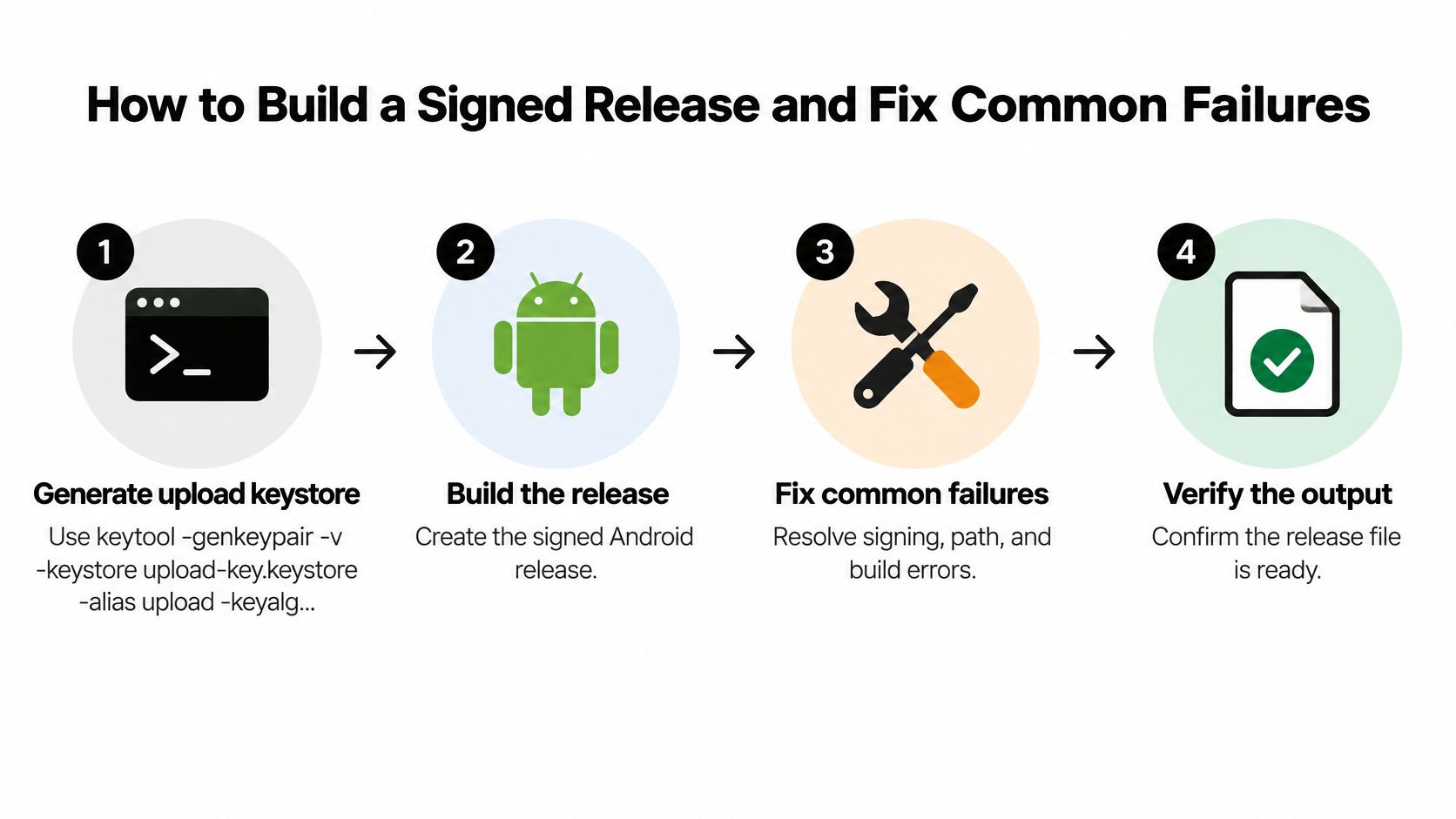
- Generate an upload keystore. Run
keytool -genkeypair -v -keystore upload-key.keystore -alias upload -keyalg RSA -keysize 2048 -validity 10000and store the file outside your repository. Losing it complicates every future update. - Add the signing configuration. Put it in
android/app/build.gradleor your EAS credentials, and keep passwords ingradle.propertiesor environment variables, never in source. - Increase versionCode. Play won't accept a code it has already seen, so bump it before every build you intend to upload.
- Build an Android App Bundle. Use
./gradlew bundleRelease, or run an EAS production build for Android if you're building in the cloud. - Install the signed release on a physical device. Test login, deep links, and push notifications before uploading anything. This is the step teams skip, and it's the one that catches release-only failures.
- Upload the AAB to Play Console. Enroll in Play App Signing so Google manages the final signing key.
When release breaks and debug doesn't
Most release-only problems come from four places. R8 or ProGuard removes code a library needs at runtime. Your OAuth client doesn't know the release certificate. Release API keys or network rules differ from debug. Or a permission never made it into the manifest.
| Symptom | Likely cause | Fix |
|---|---|---|
| Crash on launch only in release | R8 or ProGuard removed classes a library needs | Add keep rules for that library and test a minified build locally |
| Google sign-in fails only in release | OAuth client lacks the release keystore SHA-1 | Add the release certificate fingerprint to the OAuth client |
| API calls fail only in release | Release API key, environment variable or network restriction differs from debug | Check release env values and allow HTTPS endpoints only |
| Build fails at signing | Wrong keystore alias or password in gradle.properties | Confirm the alias with keytool -list and fix signingConfigs |
| Upload rejected for version | versionCode not increased | Bump versionCode before each bundle |
| Push notifications missing on device | Missing POST_NOTIFICATIONS permission or wrong project configuration | Test on a physical device with a release build and check the manifest |
Reproduce the failure locally with a release build before making any changes. Fixing by uploading repeatedly to Play is slow and conceals the underlying cause. Change one variable at a time, then rebuild and retest on the phone.
Set Up the Play Console and Publish the First Build
Uploading the bundle isn't publishing. Play Console won't let testers install anything until the listing and compliance forms are complete, so work through them in the order the console asks.
- Register a Google Play developer account. It carries a one-time registration fee, and identity verification can take time, so don't leave it to launch week.
- Create the app entry. Confirm the package name matches
app.json, since it can't change later. - Complete the store listing. Add the app name, short and full descriptions, a 512 x 512 icon, a 1024 x 500 feature graphic, and phone screenshots taken from your tested devices.
- Fill in content rating and data safety. The data safety form must describe what your app collects, including anything passed through third-party SDKs. Analytics and crash tools count.
- Add a privacy policy URL. You need one if the app handles accounts, personal data, or payments.
- Enroll in Play App Signing, then publish to internal testing. Testers install the same signed build real users will get.
Internal testing is your first honest distribution test. Check login, deep links, and push notifications through that track before any wider release. If you're used to Apple's flow, this comparison of Android testing tracks and TestFlight-style distribution explains how the tracks map.
Record which tester devices were used and what passed. Those notes become evidence at the go or no-go decision, not just chat history. A vague "it worked on my phone" won't help when a specific model starts crashing.
Confirm Release Gates and Roll Out Safely
My rule is simple. If any gate below fails, you don't promote to production. Fix it, rebuild, and run internal testing again. Shipping to find out is how a small bug becomes a bad rating you can't retract.
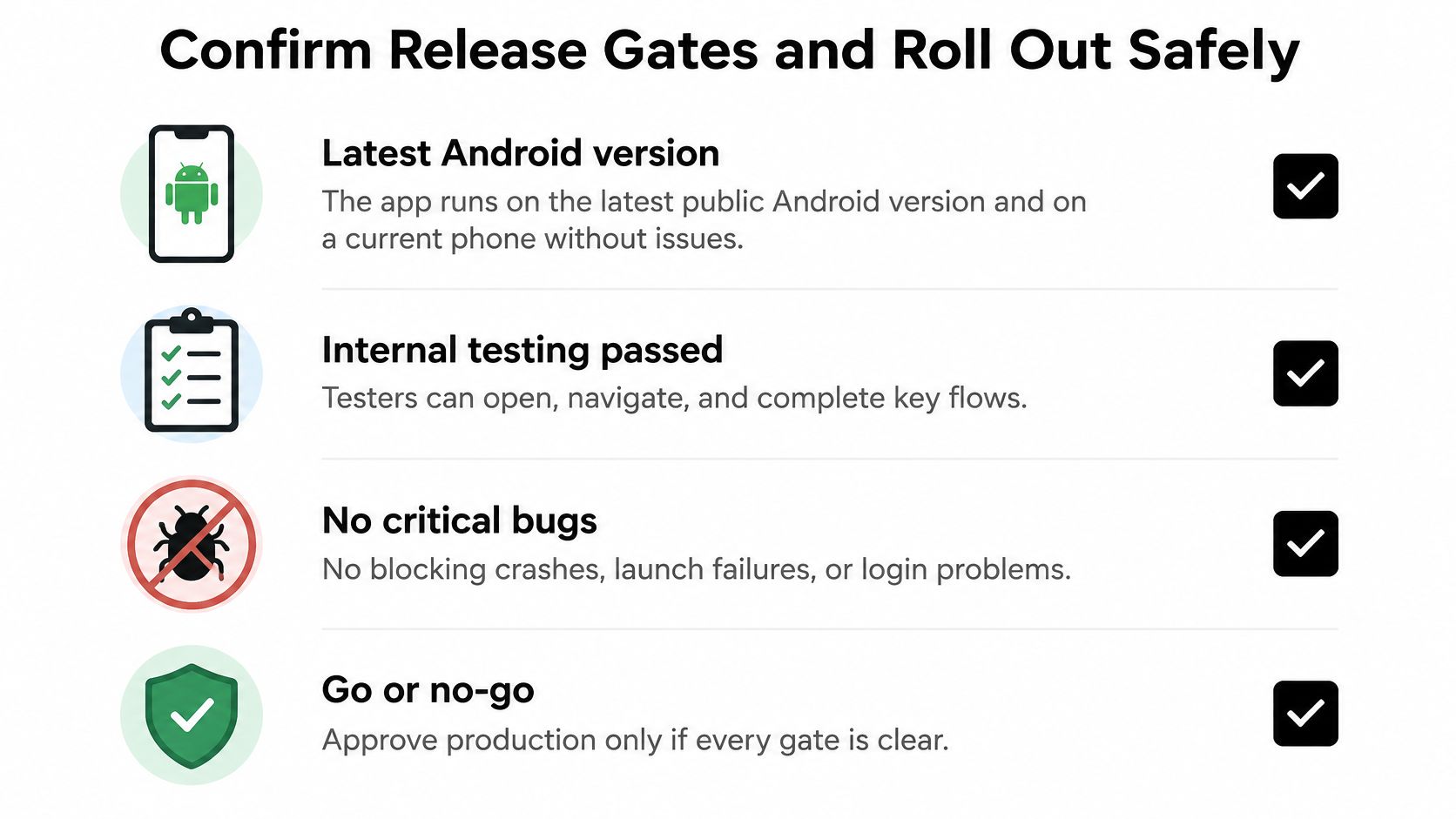
- Latest Android runs clean: The app works on the latest public version and a current phone without crashing.
- SDK is current: It targets the latest SDK required by Google Play.
- Pre-launch report is clear: No new stability issues appear.
- Worst flows don't freeze: Startup, the heaviest navigation path, and the longest list stay responsive.
- Performance holds: Release startup and frame time stay within your internal baseline.
- Signed build passes: Login, deep links, and push notifications work on the release binary.
After launch, watch crashes by device model, not just the app-wide average. Android Vitals treats at least 1.09% of daily active users experiencing a user-perceived crash as the overall bad-behavior threshold, while the threshold for a single device model is 8%. A healthy average can hide one low-cost model in serious trouble. Recheck Vitals after adding native modules, changing navigation, or updating the Android SDK.
Roll out in stages
Release to 10% of users first, check Vitals, then move to 50%, then 100%. Don't expand on a schedule. Expand on evidence.
If one device model approaches that 8% threshold, pause the rollout. Fix the cause or exclude that device, then resume. A staged rollout only protects you if someone is monitoring between stages, so assign that job to a named person before you press publish.
If you're building a React Native app for Android and want to reach the testing stage faster, RapidNative turns a prompt, sketch, or PRD into a working React Native and Expo project with screens and navigation you can preview on a real phone. Export the code to your own repository, run the signed-build and device checks above, and ship with evidence instead of hope. Start your first Android prototype today and test it on the devices your users own.
Ready to build your app?
Turn your idea into a production-ready React Native app in minutes.
Free tools to get you started
Free AI PRD Generator
Generate a professional product requirements document in seconds. Describe your product idea and get a complete, structured PRD instantly.
Try it freeFree AI App Name Generator
Generate unique, brandable app name ideas with AI. Get creative name suggestions with taglines, brand colors, and monogram previews.
Try it freeFree AI App Icon Generator
Generate beautiful, professional app icons with AI. Describe your app and get multiple icon variations in different styles, ready for App Store and Google Play.
Try it freeFrequently asked questions
What is RapidNative?
RapidNative is an AI-powered mobile app builder. Describe the app you want in plain English and RapidNative generates real, production-ready React Native screens you can preview, edit, and publish to the App Store or Google Play.
Can I export the code?
Yes. RapidNative generates clean React Native and Expo code that you can export at any time. No lock-in, no proprietary format. Hand it to your developers or keep building inside RapidNative.
Is RapidNative free to use?
Yes. The free plan gives you 20 credits a month with no credit card required. Paid plans start at $20 a month and add more credits, code export, private projects and commercial rights to publish to the App Store and Google Play.
Do I need to know how to code?
No. Most users build apps by describing what they want in plain English. Developers can drop into the code whenever they want more control, but coding is optional.
How long does it take to build an app?
Most users have a working first screen in under a minute. A full MVP usually takes a few hours instead of the weeks or months traditional development requires.