Secure React Native Login Screen Example
Build a production-ready React Native login screen example with secure token storage, accessible autofill, and robust error handling for iOS and Android apps.
By Suraj Ahmed
12th Oct 2026
Last updated: 12th Oct 2026

Most React Native login tutorials optimize for the screenshot: two fields, a button, and a successful redirect. That advice breaks as soon as the network slows down, a user relies on a password manager, an attacker repeats failed requests, or an OAuth callback arrives through a manipulated deep link. A production login screen isn't a visual component with an API call attached. It's the front door to session management, navigation, accessibility, recovery, and abuse controls.
A useful React Native login screen example should therefore show the states users and systems encounter. The form is only the visible edge of a larger authentication flow, and the quality of that flow determines whether your first app release is merely demonstrable or dependable.
Rethinking the Mobile Authentication Entry Point
The common assumption is that authentication starts and ends with email and password inputs. OWASP states that user login to a remote service is an integral part of a mobile application's overall architecture, with mechanisms such as biometrics, PINs, and multi-factor authentication extending beyond passwords. OWASP's mobile authentication guidance supports treating the login screen as an architectural boundary, not a decorative screen.
That distinction changes what belongs in a code review. A form that validates an email locally but has no server-side throttling is incomplete. A social-login button that returns credentials through an untrusted deep link is risky. A screen that looks polished but blocks paste, loses focus after an error, or exposes raw API messages is still broken for real users.
Practical rule: Review authentication as a state machine, not as a screenshot.
The state machine should account for initial session restoration, editable fields, local validation, pending requests, invalid credentials, rate limiting, network failure, MFA continuation, password recovery, successful authentication, token expiry, and logout. Client validation improves feedback, but it never authorizes a user. The backend must independently verify credentials, challenges, tokens, and access to protected resources.
React Native's cross-platform model makes this architectural framing especially valuable. The framework began as an internal Facebook hackathon project in summer 2013, reached public preview at React.js Conf in January 2015, and Facebook open-sourced the iOS implementation at F8 in March 2015. Facebook Ads Manager for iOS shipped in February 2015, while Android followed in June after roughly three months of development and one month of internal testing. When Android shipped, approximately 85% of its code was shared with the iOS application. Facebook's account of React Native's early growth illustrates why reusable components and platform-aware behavior can support one product flow across both platforms.
For a startup team, that reuse is a foundation, not permission to ignore native differences. If you're assessing whether to hire locally or extend a distributed team, a guide to nearshore mobile hiring can help frame the skills needed around native storage, OAuth callbacks, testing, and release ownership. For a broader comparison of credential, social, biometric, and multi-factor approaches, see this practical overview of mobile user authentication methods.
Building an Accessible and Controlled Form Interface
Start with a controlled form. Keep email or username state separate from password state, derive validation messages predictably, and make one submit function responsible for the request. This structure makes it easier to disable the button while a request is pending, clear a field-specific error when the user edits, and test every transition without relying on hidden component behavior.
The input configuration matters as much as the state:
- Identify the account field: Use a meaningful label, an appropriate keyboard type,
textContentType="username"where supported, and the matchingautoCompletevalue. - Protect the password field: Set
secureTextEntry, identify it as a password for autofill, and provide a show or hide control with an explicit accessibility label. - Expose actions clearly: Give the submit button, recovery link, social providers, and biometric option meaningful
accessibilityLabelvalues. - Preserve recovery: Move focus to the first invalid field, keep error text adjacent to its input, and don't communicate errors through color alone.
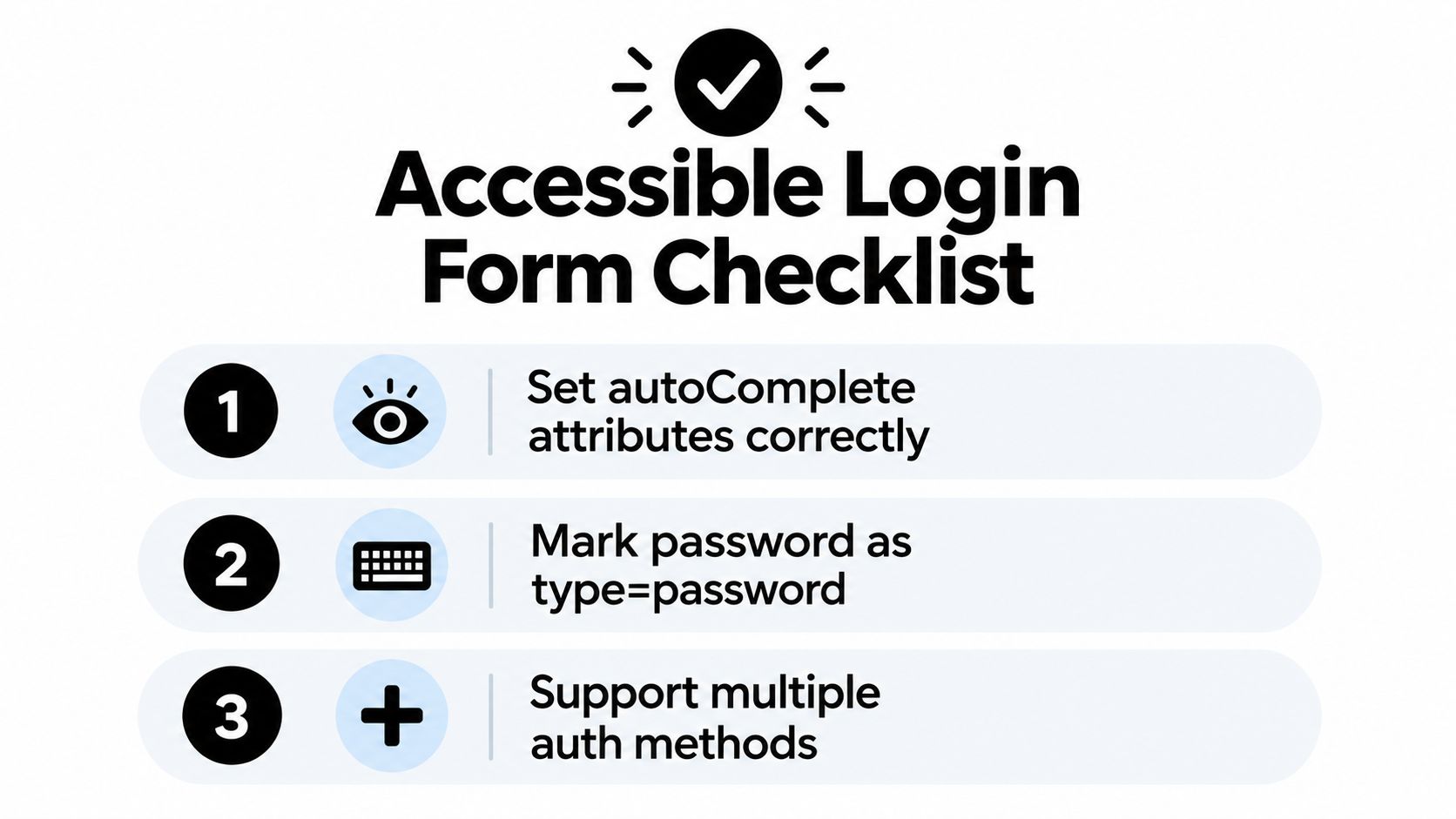
React Native documents textContentType values such as username and password for login-detail autofill through the device keychain. Its accessibility APIs integrate with iOS VoiceOver and Android TalkBack, so labels aren't cosmetic metadata. They give assistive technologies the information needed to describe controls and preserve a sensible focus order. React Native's TextInput documentation is the right reference when platform behavior differs.
A compact implementation shape
A useful component might hold identifier, password, fieldErrors, status, and showPassword in local state. status should distinguish at least idle, pending, authenticated, invalid credentials, rate limited, network unavailable, and service error. Keep the request function outside the visual JSX where practical, then have the component render the response state rather than infer it from timing.
Keyboard handling deserves equal attention. Wrap the form in KeyboardAvoidingView, test both platforms with a visible keyboard, and make sure the submit control remains reachable on a small display. Support paste and password-manager insertion. Don't replace an accessible error with a toast that disappears before a screen reader can announce it.
The form should also prepare for authentication beyond passwords. OWASP identifies biometrics, PINs, and MFA as common mechanisms, while NIST materials report that a majority of leading mobile apps still use passwords and 42% have at least one social-login option. The OWASP mobile application security material gives that baseline useful product context. A first release may begin with passwords, but its layout and navigation shouldn't make social sign-in, MFA, recovery, or device authentication expensive to add later.
For designers and PMs, accessibility in mobile apps is a useful companion when reviewing touch targets, labels, focus behavior, and nonvisual feedback. The important test isn't whether the form looks minimal. It's whether a user can understand and complete it with the tools their device already provides.
Handling Submissions and Mapping Server Responses
The submit tap is where a prototype becomes a production flow. Before sending anything, validate required fields and basic format locally, then stop duplicate requests with a pending state. Button disabling is useful feedback, but it isn't a security control because a modified client can bypass it.
A guarded submission sequence should look like this:
- Validate locally. Show precise field errors for missing or malformed input without claiming the credentials are correct.
- Enter pending state. Disable or debounce the submit action and prevent concurrent calls from the same screen.
- Send over HTTPS. The password should travel only through a protected connection to the authentication service.
- Normalize the response. Convert backend outcomes into stable client states rather than displaying raw server text.
- Persist the session safely. Retain the returned session credential according to the platform's secure-storage design, never the password.
- Restore or route. Let authenticated navigation depend on verified session state.
NIST guidelines require verifiers to rate-limit failed authentication attempts and recommend generic responses such as “Invalid credentials” to reduce account enumeration. They also describe progressive delays as a way to reduce automated attacks. NIST Digital Identity Guidelines should inform the backend contract, not just the copy on the screen.
Design the response contract first
A clean API contract lets the UI behave consistently:
| Backend condition | Client state | User-facing behavior |
|---|---|---|
| Request is running | Pending | Disable submit and show progress |
| Credentials don't verify | Invalid credentials | Show a generic message and preserve safe input |
| Too many attempts | Rate limited | Explain that the user should wait, without exposing account details |
| Device can't reach service | Network unavailable | Offer retry without implying the credentials failed |
| Unexpected backend failure | Service error | Provide a recoverable message and telemetry |
| Authentication succeeds | Authenticated | Store the session credential and enter protected navigation |
The server should own attempt counters, progressive delays, bot challenges, and lockout decisions. A JavaScript counter resets when the app restarts and can be removed by anyone modifying the client. The response should also avoid confirming whether an email address exists, including during password recovery.
Don't log passwords, access tokens, refresh tokens, or raw authorization responses. Instrument the path from submit to successful session, authentication latency, retry frequency, rate-limit events, crash-free login sessions, and abandonment after validation errors. Those signals help distinguish a visually fast form from a flow that performs reliably on slow or unreliable networks.
Securing Tokens and Managing Authenticated Navigation
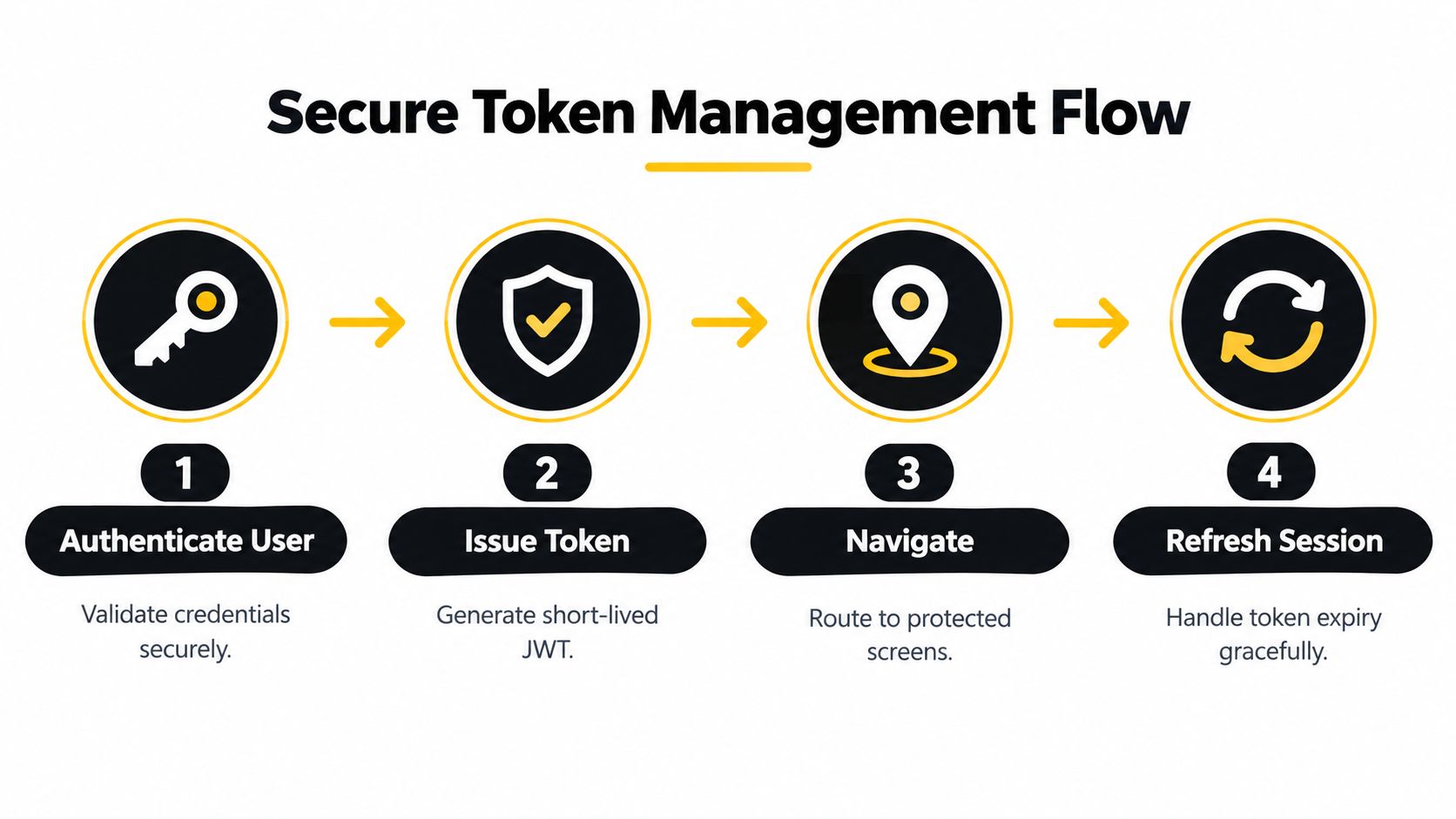
Credential validation starts a session, but it does not finish authentication. The app must store, refresh, revoke, and apply that session when deciding which routes to show. A bearer token in ordinary preferences, or a callback URL treated as trusted storage, creates avoidable exposure.
For OAuth or OpenID Connect, use the authorization-code flow with PKCE. The app opens the provider's authorization experience, receives a code through the registered callback, then exchanges it for tokens with the verifier. React Native security guidance warns that deep links are not secure for sensitive information, recommends authorization-code flow with PKCE, and directs teams toward platform secure-storage facilities. React Native's security guidance explains the trade-off.
Separate credentials from session state
The password belongs in the sign-in request, never in device storage. Store revocable session credentials with native facilities such as Apple Keychain or Android Keystore, and make refresh-token rotation a backend responsibility. OWASP recommends device-specific tokens, protected storage, encrypted transport, platform biometrics, and a fallback such as a PIN. OWASP's mobile application security cheat sheet explains the security rationale.
At startup, show an explicit loading or restoring state while the app checks the stored session. A valid credential should render the protected navigator. An expired credential should use the approved refresh path. If refresh fails, clear the session and render the signed-out navigator. Sending users straight to a home screen and waiting for a later API rejection produces confusing flashes of protected UI.
React Navigation's auth-flow pattern is state-driven. Signed-in users receive authenticated routes, while signed-out users receive sign-in routes. Protect the API as well, because route visibility is a user experience decision, not authorization. Hold a deep link to a protected screen until the session check completes, then route or reject it according to the verified state.
Logout needs the same discipline. Clear local session material, revoke or invalidate server-side credentials where supported, remove cached private data, and return to the signed-out route tree. Do not leave a protected screen mounted behind the login screen, where back navigation or stale state could reveal private content.
For persistence decisions, this guide to local storage solutions distinguishes ordinary app preferences from credentials that need native protection. Choose storage according to data sensitivity, not the convenience of a JavaScript API.
Designing for Password Managers and Modern Passkeys
A stripped-down login can create more friction than a richer one. Users who rely on a password manager need recognizable fields, paste support, and predictable focus. Users who can't or shouldn't memorize passwords need an alternative authentication path, not a clever puzzle or an artificially restrictive input.
WCAG 2.2 Accessible Authentication guidance says users mustn't be forced to complete a cognitive test, such as remembering a password, unless an alternative assistive mechanism is available. The WCAG 2.2 guidance makes password managers and passkeys part of an accessible authentication strategy, not optional polish.
Reduce memory and motor demands
Use the platform's account and password metadata so operating-system autofill can identify the fields. Let users paste credentials, keep the password reveal control accessible, and avoid clearing both fields after a recoverable server error. For multi-step MFA, apply the same discipline to the code screen. An accessible first screen doesn't compensate for an OTP input that blocks paste, hides the remaining time, or relies on color to communicate an invalid code.
Passkeys offer a different interaction model. They use WebAuthn-based credentials with device biometrics or a PIN instead of a typed password, while biometric login can provide a convenient re-entry path after the app has established a valid session. Neither should eliminate recovery. A device may lack biometric hardware, a biometric check may fail, or a user may not have enrolled one, so provide a fallback such as a PIN or another server-approved method.
Make the inclusive path the normal path
The product decision is more nuanced than “show fewer options.” A single password field may look simple, yet it can force memory work, increase reset requests, and frustrate users with motor or cognitive disabilities. A clear password-manager path, passkey entry point, recovery link, and MFA continuation can make the screen more capable without making it confusing.
For a startup release, review the flow with a short scenario set:
- Returning password-manager user: Autofill both fields, submit without unexpected focus changes, and receive a clear result.
- User with a screen reader: Hear labels, validation messages, loading status, and the purpose of every action.
- User who can't use biometrics: Reach the fallback without being trapped in a failed biometric prompt.
- User completing MFA: Paste or enter the code, understand expiry or failure, and request recovery through a supported path.
- User on a poor connection: See a retryable network state rather than a misleading credential error.
These aren't separate accessibility and security checklists. Correct field semantics help password managers, clear state mapping reduces unsafe retries, and server-verified alternatives reduce pressure to weaken the primary login path.
Accelerating Auth Flows with AI-Native App Builders
Secure authentication boilerplate is repetitive, but it isn't trivial. Teams still need controlled inputs, platform metadata, loading states, conditional navigation, testable API boundaries, and a clear handoff to backend security work. Generating the first screen can save setup time, but generated code must undergo the same review as hand-written code.
RapidNative is one option for scaffolding this starting point. It turns prompts, sketches, images, or PRDs into shareable React Native apps using React Native, Expo, and NativeWind, with screens, navigation, and components rendered live. For a login flow, a product team can use prompt-to-app or PRD-to-app workflows to create the visible form and route structure, then export clean, modular code to its own repository for engineering review.
Keep generated code inside a reviewable workflow
A useful generated authentication screen should make its assumptions visible. Check that:
- Form state is controlled: Email and password values, validation, and pending status don't depend on uncontrolled side effects.
- Security stays server-side: The client doesn't decide whether credentials or MFA are valid.
- Storage is appropriate: Passwords aren't persisted, and tokens don't fall into ordinary preferences or logs.
- Navigation follows session state: Protected routes aren't reachable before startup restoration completes.
- Accessibility is testable: Labels, focus order, autofill metadata, keyboard handling, and error announcements work on iOS and Android.
- OAuth callbacks are safe: PKCE, redirect handling, and token exchange belong in a deliberate integration rather than a placeholder fetch call.
This division lets product teams move quickly without confusing a polished prototype with production authentication. Founders can validate the path and interaction, designers can inspect real states, and developers can replace mock services with a backend contract while preserving reusable components.
RapidNative also supports collaborative previews through links or QR codes, which makes review easier for teams that need to test keyboard behavior, focus movement, and failure states on actual devices. The value isn't that a builder removes security work. It removes repetitive scaffolding so the team can spend its review time on the security and product decisions that generated code can't safely make for you.

Use RapidNative to scaffold a React Native authentication flow from a prompt or PRD, then export the code for your team to connect to its real backend. Start by testing the generated screen against autofill, accessibility, rate-limit responses, session restoration, and secure token handling before shipping it to users.
Ready to build your app?
Turn your idea into a production-ready React Native app in minutes.
Free tools to get you started
Free AI PRD Generator
Generate a professional product requirements document in seconds. Describe your product idea and get a complete, structured PRD instantly.
Try it freeFree AI App Name Generator
Generate unique, brandable app name ideas with AI. Get creative name suggestions with taglines, brand colors, and monogram previews.
Try it freeFree AI App Icon Generator
Generate beautiful, professional app icons with AI. Describe your app and get multiple icon variations in different styles, ready for App Store and Google Play.
Try it freeFrequently asked questions
What is RapidNative?
RapidNative is an AI-powered mobile app builder. Describe the app you want in plain English and RapidNative generates real, production-ready React Native screens you can preview, edit, and publish to the App Store or Google Play.
Can I export the code?
Yes. RapidNative generates clean React Native and Expo code that you can export at any time. No lock-in, no proprietary format. Hand it to your developers or keep building inside RapidNative.
Is RapidNative free to use?
Yes. You can build apps on the free plan with no credit card required. Paid plans unlock unlimited AI generations, code export, and direct publishing to the App Store and Google Play.
Do I need to know how to code?
No. Most users build apps by describing what they want in plain English. Developers can drop into the code whenever they want more control, but coding is optional.
How long does it take to build an app?
Most users have a working first screen in under a minute. A full MVP usually takes a few hours instead of the weeks or months traditional development requires.