UI UX Engineering for Mobile Product Teams
UI UX engineering for mobile teams: who owns screens, how handoffs work, tap-target sizes, and how to review AI prototypes before they ship.
By Sanket Sahu
30th Oct 2026
Last updated: 30th Oct 2026

You have a design file that looks finished and a review on the calendar. The founder wants a tappable flow by tomorrow. The engineer wants something they can merge without guessing what happens when the network drops. That tension is where UI UX engineering earns its place. It is not a second coat of visual polish. It is the set of behavior contracts that say what a control does, how large the hit area is, and who signs off before an AI draft becomes the baseline. A screen that only looks arranged fails the first real thumb. A screen with a named owner, a measured target, and a reviewed failure path survives it.
What UI UX Engineering Fixes on a Phone
A founder opens a test build that looked finished in the design file. On a mid-range phone, the Next button is hard to hit, the layout shifts when the keyboard opens, and a failed login offers no clear way to try again.
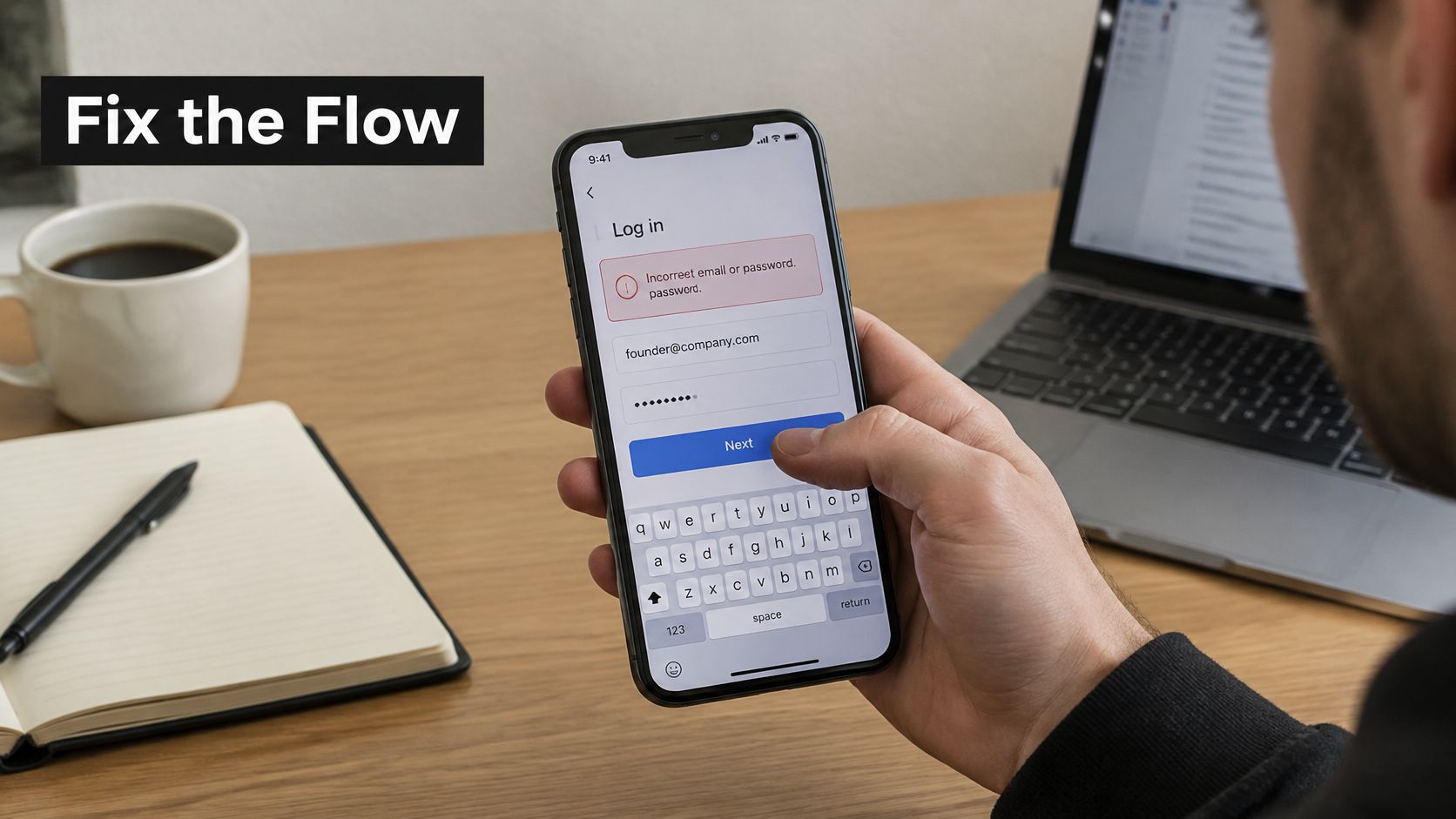
Three roles shape that screen. Product chooses the task, such as signing in. Design sets the hierarchy, copy, and tone. UI UX engineering turns those choices into navigation, reusable components, and defined responses to loading, empty, and error states. The result is a behavior contract: for each action, the screen makes clear what happens next and how the user can recover.
A red line under the password may look like a complete error state in a design file. On a phone, the keyboard can cover the retry control. The screen also needs a defined focus target, a clear response while the request runs, and a path back to the email field. Guiding Growth's interface design guide offers practical guidance for deciding which interactions a small team should settle before a build.
UI UX engineering connects the visual layout to what the app does. The U.S. Bureau of Labor Statistics tracks web and digital interface designers as a recognized occupation in its Occupational Employment and Wage Statistics program. For a small team, the practical point is simple: usability decisions belong in the build, where a person can check the whole flow, not just the appearance of one screen.
Who Owns Each Piece of a Mobile Screen
On a five-person mobile effort, blank cells cause more bugs than missing talent. Product or the founder, the designer, the UI UX engineer, and QA each decide a different slice of the same screen. If you don't have a titled UI UX engineer, the person who merges the UI code still owns that column. States don't stay implied in a picture. How code ownership works on a small team is the habit that keeps the merge from becoming the design.
| Workstream | Product or founder | Designer | UI UX engineer | QA |
|---|---|---|---|---|
| Task to support | Names the user job and success | Maps the intended path | Implements navigation and guards | Runs the task on a device |
| Visual hierarchy | Approves scope | Layout, type, color, copy | Maps visuals to components | Checks against the spec |
| Component behavior | Sets priority of states | Specifies empty, loading, error | Builds state API and focus | Tries failure and recovery |
| Hit area and semantics | Accepts platform rules | Keeps visual size compact | Sets target, label, contrast | Measures the real control |
| Release evidence | Chooses the gate | Reviews task fit | Keeps test ids and events | Records pass or fail |
Onboarding is four handoffs, not one mock
Product names the job: create an account and land in the app. Design specifies field order, helper copy, and the primary button. Engineering implements focus, the keyboard, and the disabled state while the request is in flight. QA runs the task one-handed on a physical phone, including a bad email and a retry. If any cell is blank, the keyboard jump from the test build comes back.
A compact list still needs a real target
Design may show a small overflow icon so the row stays quiet. Engineering expands the tappable region and stops the row from shifting when a badge loads. QA measures the hit area, not the painted glyph, and checks that a neighbor isn't swallowed. Product's only decision here is whether that overflow action is in scope for this release.
Sharing a preview is a permission, not a icon
Product decides who may receive the link. Engineering implements the permission prompt and a failure message the person can act on, such as "link didn't send, try again." QA checks recovery, not just the happy share sheet. Design keeps the visual weight of Share consistent with other primary actions.
Practical rule: Fill the blank owner cells on the feature you are building now, before the next build starts. A name in each cell beats a longer spec.
How a Screen Moves from Sketch to Code
Run one pass on a single feature. The output is a reviewable interface, not a store release. Budget a few hours for a narrow flow. A multi-week blank build hides the decisions you needed this afternoon.
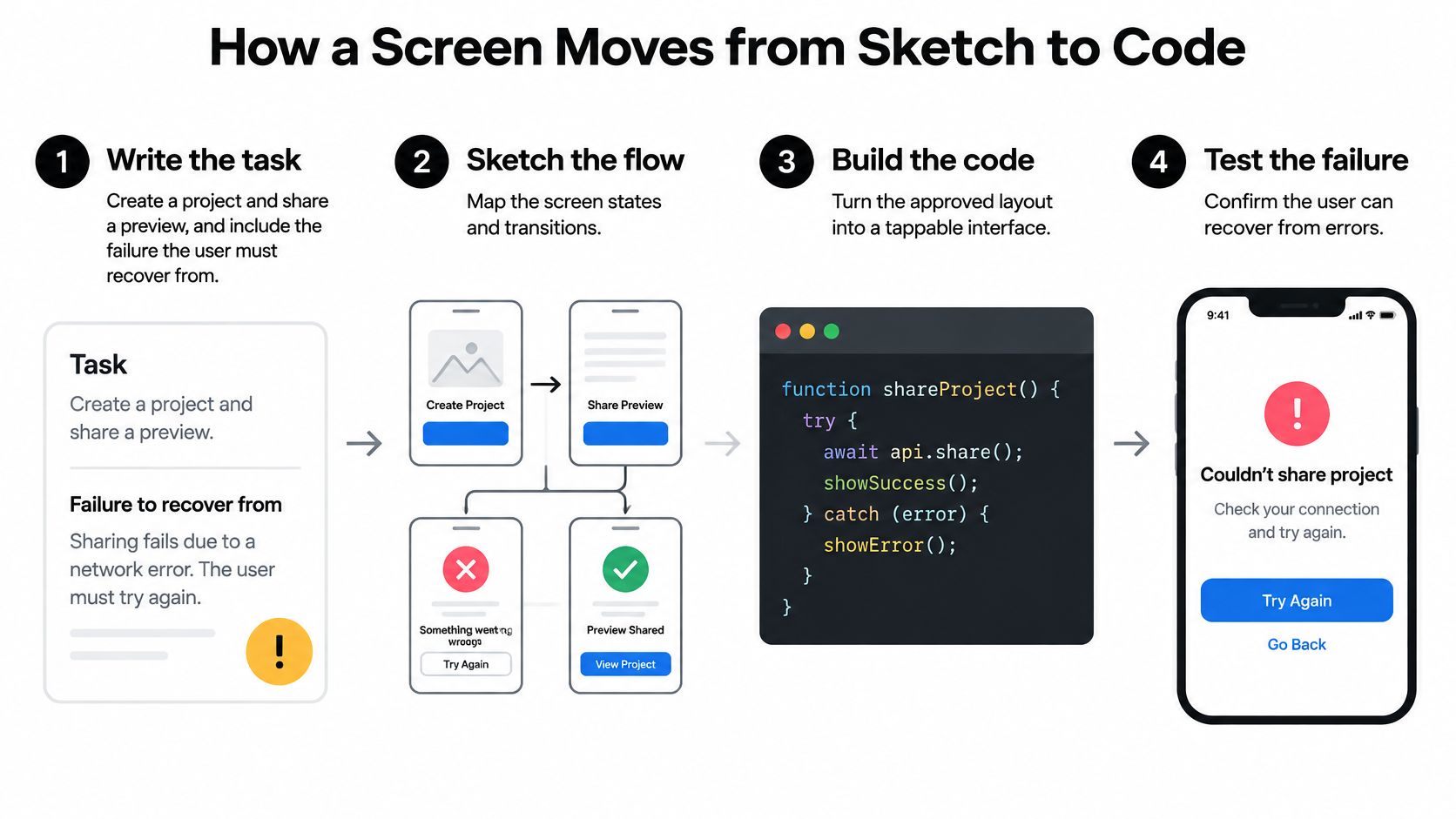
- Write the task. Product writes one sentence, such as "create a project and share a preview," plus the failure the user must recover from. If the failure isn't named, the last person to touch the file invents it.
- Attach the starting artifact. Design names the screens in order and pins the source: a whiteboard photo, a screenshot, or a short PRD. Order matters more than polish. People get lost between screens, not inside a single frame.
- Agree the component list. Before pixels are refined, design and engineering list the shell, text field, primary button, list row, and dialog. New one-off controls are how spacing and labels drift.
- Build the happy path and three real states. Engineering implements loading, empty, and error alongside the success path. A static mock leaves keyboard, offline, and permission behavior to whoever edits the file last. That is the handoff bug this pass exists to stop.
- Preview on a phone-sized surface. Pass the build to a teammate who didn't draw it. A desktop frame hides thumb reach, keyboard cover, and type that wraps.
- Record the change and the approver. The PM signs behavior before the code is treated as the new baseline. Note what changed, not only that it "looks good."
A designer usually leads the first three moves. An engineer leads the build and the record. The PM owns approval. That matches the columns you already filled.
A screen is not handed off when it looks right. It is handed off when another person can finish the task and trigger the error state.
Toolchain From Design File to Repo
Each handoff needs a named artifact. Speed of the first screen is a weak reason to pick a tool. The better test is whether the next person can see the contract.
Five layers, one trail
Design file. Shared frames, spacing and color tokens, and the states each screen must show. If empty and error aren't frames, they won't be components.
Component catalog. One button, one icon button, one list row, and one tab. Each carries the contract fields you'll enforce in code: label, target, spacing, disabled, pressed or loading, and focus. A token such as color.action.primary maps to one theme value, so a color change updates every button instead of each screen by hand.
Prototype and preview. A phone-sized build a teammate can open without a briefing. If the preview needs a tour, the flow isn't ready to review.
Test and measurement. Stable test identifiers, seeded sample data, and an event schema for completion, retry, and latency. Without those, two variants can't be compared. Stakeholder taste fills the gap.
Repository and review. Generated or hand-written React Native code goes through the normal pull request. The prototype is not the product until that review exists.
RapidNative sits in the prototype-to-code layer. A founder or designer describes a screen in plain English, or drops in a sketch or screenshot, and gets React Native screens built from primitives the team can read. We don't pull in external UI kits such as gluestack, Tamagui, or RN Paper, because those kits aren't in the template. You refine the layout with the assistant or edit the code in an IDE, then export it to the team repo so the prototype isn't trapped in a tool.
Choose the stack that keeps the contract visible. A faster first frame that hides state, targets, and events costs more at review than it saved in the morning.
Tap Targets and Component Contracts
Every interactive control is a contract, not a picture. Three surfaces set three minimums. Apply the native number on the app. Use the web number only to catch undersized web controls, never as a reason to shrink the native hit area.
| Surface | Minimum target | What to measure | Spacing note |
|---|---|---|---|
| Android native | 48dp by 48dp | Full hit area, not the icon | At least 8dp between targets |
| iOS native | 44pt by 44pt | Control bounds, not the glyph | Expanded area must not overlap |
| Web or embedded web | 24 by 24 CSS pixels | Rendered target in CSS pixels | Spacing can separate smaller controls |
Android's accessibility guidance asks for a focusable touch target of at least 48dp by 48dp, about 9mm, with at least 8dp between neighbors. A 24dp icon can sit inside that larger hit area. Padding does the work, not a bigger glyph. Apple's interface guidance recommends controls of at least 44 points by 44 points, so a 20-point close icon lives in a 44-point control that doesn't overlap the next action. WCAG 2.5.8 Target Size (Minimum), a Level AA criterion, sets a smaller web baseline of 24 by 24 CSS pixels, with spacing exceptions. CSS pixels are not dp or points. A checkout that also ships as a responsive web view can fail that baseline when plus and minus sit tight, even if the card around them looks roomy.
One icon button, three checks
Say the toolbar shows a 24dp three-dot icon. On Android the button container is 48dp by 48dp, with 8dp before the next control. On iOS the same action is a 44-by-44-point control, and the expanded region doesn't cover Back. On an embedded web toolbar, you measure the rendered target in CSS pixels and reject anything under 24 by 24 unless spacing clearly separates it. The painted icon can stay compact on all three.
Fields that belong on the component
A shared button, icon button, list row, and tab should carry these fields in the catalog, not in a final audit:
- Visible label and accessibility name: what the person sees, and what the screen reader says.
- Minimum target and spacing: the platform number, measured on the hit area.
- Disabled, pressed, and loading: immediate feedback so a tap doesn't feel ignored.
- Dynamic text, focus order, and contrast: behavior that survives larger type and keyboard focus.
Accessibility work stalls when platform APIs differ, ownership is fuzzy, and devices fragment. Putting the fields on the component is how you stop treating that as a late checklist. Design system implementation is where those fields stop being a doc and start being the code reviewers see.
Measure the hit area, not the painted icon. Then try the control one-handed and at high magnification before you call the screen done.
How to Tell a Screen Is Actually Usable
Polish opinions don't ship. A short scorecard does, taken on the same tasks and the same kind of participant.
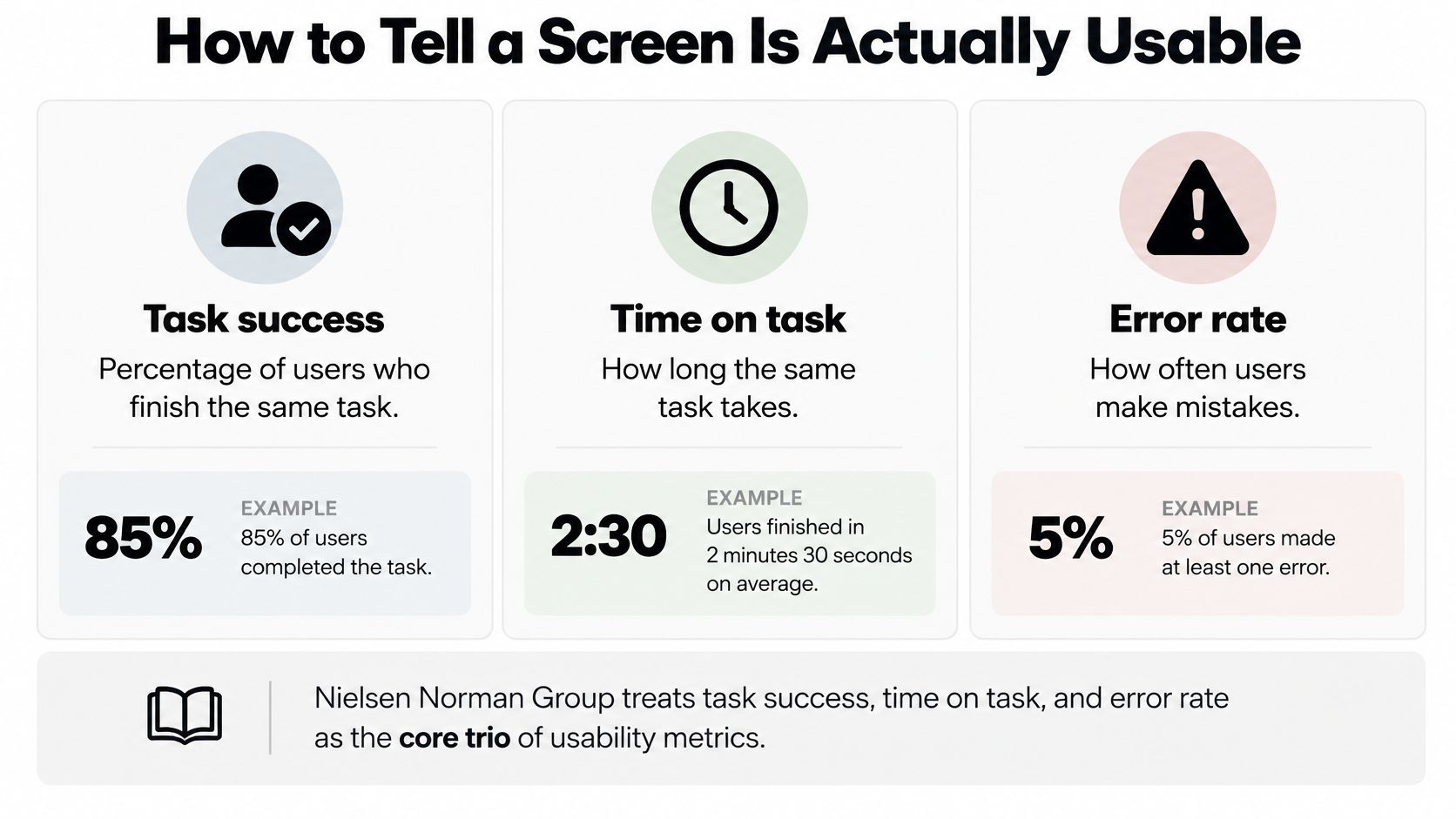
Nielsen Norman Group treats task success rate, time on task, and error rate as the core measures. Success says the job finished. Time shows friction. Errors show a broken label, order, or control. Define four tasks before implementation: finish onboarding, create a project, edit a field, and share a preview. Log completion, abandonment, retry, and latency on each. A variant that raises completion while making the task much slower or more error-prone is not a win.
One NN/g redesign comparison cut total task time from 236 seconds to 69 seconds, a 70.8% reduction. Treat that as a model for before-and-after testing on your own tasks. It is not a target to copy. Set each goal against this product's baseline and the difficulty of the task.
Feel is a percentile, not an average
Google's Core Web Vitals guidance evaluates real-user data at the 75th percentile: Largest Contentful Paint at 2.5 seconds or less, Interaction to Next Paint at 200 milliseconds or less, and Cumulative Layout Shift at 0.1 or less. Those are web thresholds. The cause transfers to React Native. Slow first paint delays discovery. A long gap after a tap feels like a miss. A shift causes the wrong selection. Measure cold start, warm start, tap-to-feedback, and layout stability on a low-end Android device, not only on the fast phone at the desk.
Practical controls are skeletons with fixed dimensions, immediate pressed or loading feedback, virtualized long lists, and keeping heavy work off the JavaScript thread during a gesture. Averages hide the people on the slow device. The 75th percentile is the release gate.
| Check | Measure | Gate | If it fails |
|---|---|---|---|
| Task success | Completed without help | Better than this product's baseline | Fix the blocking step |
| Time on task | Seconds to finish | No large rise versus baseline | Remove steps or waits |
| Error rate | Wrong or repeated actions | No rise versus baseline | Relabel or reorder controls |
| First render | LCP-style start | 2.5 seconds or less at p75 | Shrink the first screen |
| Tap response | INP-style latency | 200 milliseconds or less at p75 | Add instant feedback |
| Layout stability | CLS-style shift | 0.1 or less at p75 | Reserve space for loads |
Ship only if the 75th percentile and the task score both hold. Teams chasing that kind of bar on a live product, including the work behind better UX for Wormhole users, treat recovery and clarity as release evidence, not as a later pass. The same discipline belongs in accessibility in mobile apps: names, focus, and captions are part of the score, not a separate audit after the numbers look fine.
Review AI Drafts and Ship the Next Flow
Take a class-booking app. The founder has a photo of a whiteboard and needs a tappable flow the same day. Most of our users build by describing what they want in plain English, and coding is optional. A full MVP usually takes a few hours instead of the weeks or months a traditional build takes. That speed is safe only if you label every draft before it merges.
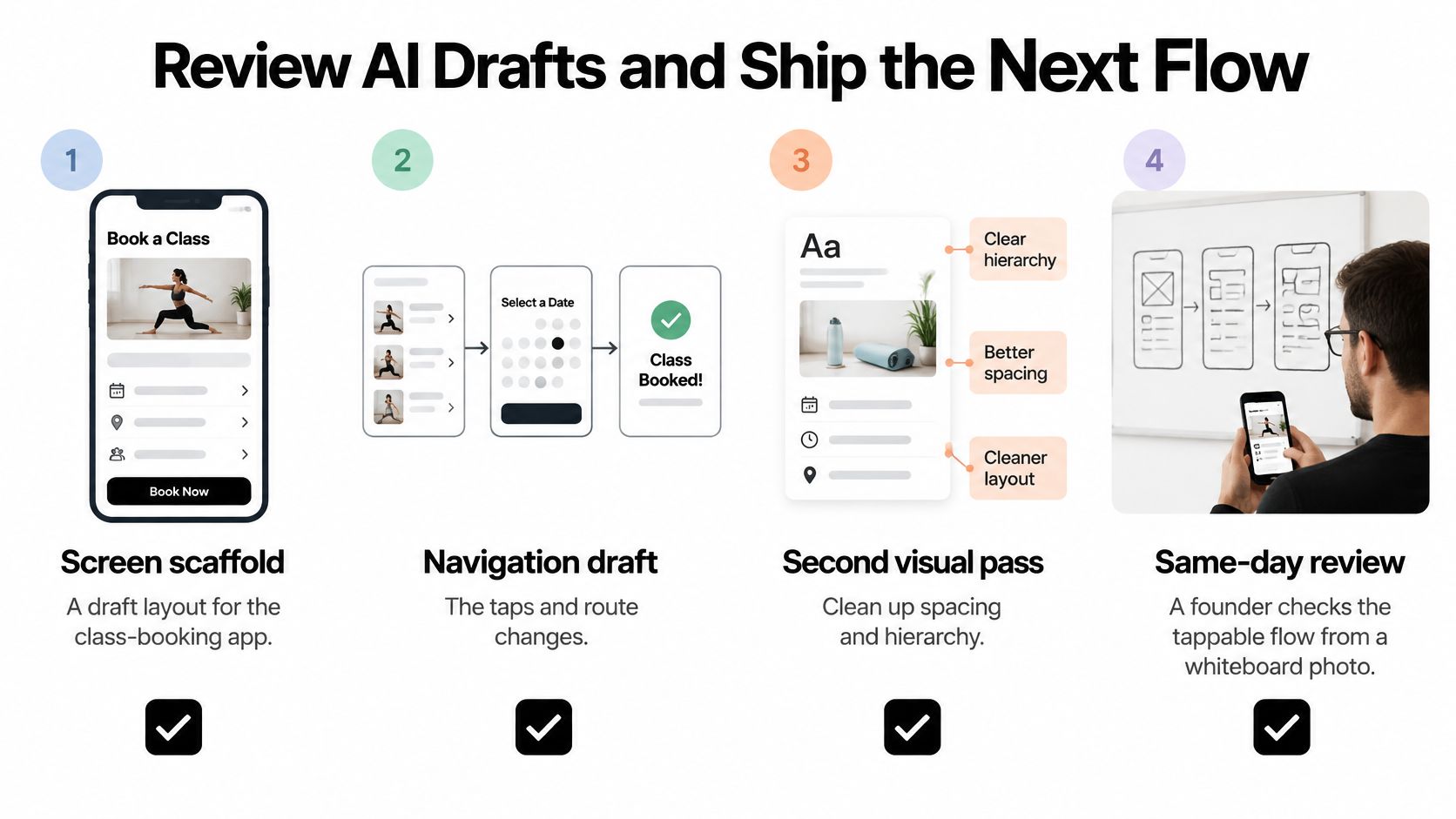
Safe to draft. The screen scaffold, a navigation draft, a second visual variant, and reuse of existing primitives. These accelerate a review. They don't decide product risk.
Keep for a person. Permissions, payment or account recovery, accessibility names and focus order, localization, and any edge state that can trap the user. A plausible screen can still book the wrong person or hide the way out of a failed payment.
Nielsen Norman Group's second mobile-usability study gives context, not a pass mark. Researchers observed 390 tasks. Overall success averaged 62%. Mobile applications reached 76%, compared with 64% for mobile-specific websites. Ask a participant to create an account, find a class, save it, and check out without help. Record completion, where they hesitate, and whether an error is recoverable. Use your own task-success rate as the decision. Don't assume an app is usable because it is an app.
Five checks before merge
- Write constraints before generation: task, failure, and which components already exist.
- Watch the rendered flow on a device, not only in the browser frame.
- Run the realistic task, including one failure.
- Compare controls against the target-size contract.
- Keep product approval on anything high-risk.
Then pick one unfinished flow this week. Name its task and its failure state. Review it with the designer and the engineer in the same workspace. Mark each AI draft as scaffold or decision before anyone merges it. Ship the reviewed flow, or send it back with the failed check named.
The deliverable is the reviewed flow, not the draft that appeared first.
RapidNative turns a prompt, sketch, screenshot, or PRD into shareable React Native screens your team can inspect, edit, and export. Use it to put a behavior contract on the next mobile flow, then review the failure path with your designer and engineer before you treat the code as the baseline. Start that pass at RapidNative.
Ready to build your app?
Turn your idea into a production-ready React Native app in minutes.
Free tools to get you started
Free AI PRD Generator
Generate a professional product requirements document in seconds. Describe your product idea and get a complete, structured PRD instantly.
Try it freeFree AI App Name Generator
Generate unique, brandable app name ideas with AI. Get creative name suggestions with taglines, brand colors, and monogram previews.
Try it freeFree AI App Icon Generator
Generate beautiful, professional app icons with AI. Describe your app and get multiple icon variations in different styles, ready for App Store and Google Play.
Try it freeFrequently asked questions
What is RapidNative?
RapidNative is an AI-powered mobile app builder. Describe the app you want in plain English and RapidNative generates real, production-ready React Native screens you can preview, edit, and publish to the App Store or Google Play.
Can I export the code?
Yes. RapidNative generates clean React Native and Expo code that you can export at any time. No lock-in, no proprietary format. Hand it to your developers or keep building inside RapidNative.
Is RapidNative free to use?
Yes. The free plan gives you 20 credits a month with no credit card required. Paid plans start at $20 a month and add more credits, code export, private projects and commercial rights to publish to the App Store and Google Play.
Do I need to know how to code?
No. Most users build apps by describing what they want in plain English. Developers can drop into the code whenever they want more control, but coding is optional.
How long does it take to build an app?
Most users have a working first screen in under a minute. A full MVP usually takes a few hours instead of the weeks or months traditional development requires.