How to Make App Store Screenshots for a React Native or Expo App
Capture clean screens from the simulator, emulator or Expo Go, design a full App Store and Google Play set with Appshots, and export every required size. A step-by-step walkthrough.
By Riya
28th Oct 2026
Last updated: 28th Oct 2026
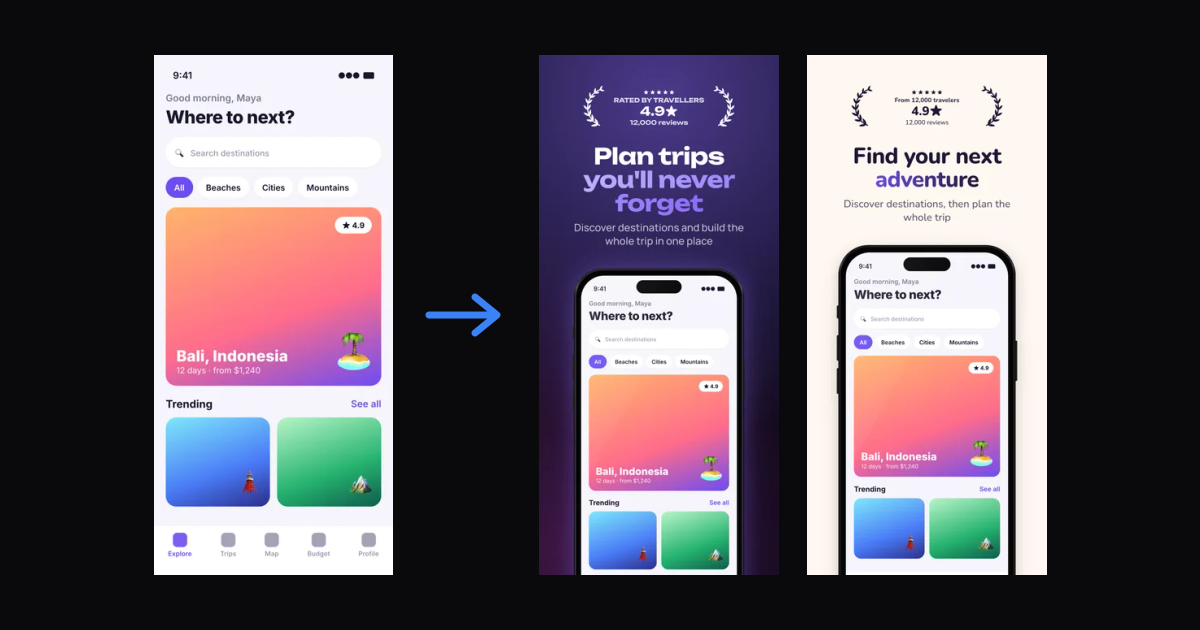
You've built a React Native or Expo app, the build is ready, and the store listing wants screenshots. Not the raw captures from your simulator, but designed images with a headline, a device frame and a consistent look, at the exact sizes the App Store and Google Play accept. This guide shows how to make App Store screenshots for a React Native or Expo app from start to finish: capturing clean screens, designing the set with Appshots, and exporting and uploading every size.
The whole thing takes well under an hour, and most of that is capturing good screens.
The sizes you need
Before you capture anything, know what you're making. These are the sizes Appshots exports, which match what the stores ask for today:
| Store | Format | Size (pixels) | Needed? |
|---|---|---|---|
| App Store | iPhone 6.9" | 1320x2868 | Yes, the main iPhone size |
| App Store | iPhone 6.7", 6.5", 6.3", 6.1" | 1290x2796, 1284x2778, 1206x2622, 1179x2556 | Optional |
| App Store | iPhone 5.5" | 1242x2208 | Optional |
| App Store | iPad 13" | 2064x2752 | Yes, if your app runs on iPad |
| App Store | iPad 12.9" | 2048x2732 | Optional |
| Google Play | Phone (9:16) | 1080x1920 or 1440x2560 | Yes |
| Google Play | Phone (1:2) | 1080x2160 | For taller phones |
| Google Play | Tablet 10" and 7" | 1600x2560, 1200x1920 | For tablet listings |
| Google Play | Feature graphic | 1024x500 | Yes |
App Store Connect accepts up to 10 screenshots per size, and Google Play up to 8 phone screenshots. You don't need to fill every slot. Five to eight strong screens is plenty for most apps, and the first two or three matter most because they show in search results.
A note on Expo apps: if your app.json sets ios.supportsTablet to true, App Store Connect will ask for iPad screenshots too. If you don't intend to support iPad, set it to false before you submit. Expo's own guide to store assets covers icons and splash screens alongside screenshots.
Step 1: Pick the screens that tell your story
Store screenshots are an ad, not documentation. Before you capture, list the five to eight moments that best show what the app does for someone:
- The core benefit, the one screen that explains why the app exists
- The main action, what the user does most often
- A result or outcome, such as a finished plan, a chart, a completed order
- One or two differentiators, the features competitors don't have
- Personalization or social proof, if you have it
Skip settings screens, empty states and login forms. If a screen needs data to look good, fill it with realistic sample content. A "Good morning, Maya" with a real-looking list beats a blank screen with placeholder text.
Step 2: Capture clean screens
The cleaner your raw captures, the better the final set looks. Three things make the biggest difference: the right device size, a tidy status bar and no development overlays.
Turn off development overlays
Run the app without dev-mode warnings and overlays. With Expo, start the bundler in production mode:
npx expo start --no-dev --minify
If you capture from a development build and yellow warning boxes still appear, you can silence them for a capture session with LogBox.ignoreAllLogs() in your root component. Remove it afterwards.
iOS Simulator
Use the iPhone 16 Pro Max simulator. Its screen is 1320x2868, which is exactly the 6.9-inch size App Store Connect asks for, so your captures need no scaling.
Clean up the status bar so every screenshot shows the same time and a full battery:
xcrun simctl status_bar booted override --time 9:41 --batteryState charged --batteryLevel 100 --cellularBars 4 --wifiBars 3
Then capture each screen with Command+S in the Simulator (it saves to your Desktop), or from the terminal:
xcrun simctl io booted screenshot home.png
Run xcrun simctl status_bar booted clear when you're done.
Android emulator
Pick a 1080x1920 or 1080x2400 phone profile. For a clean status bar, turn on System UI demo mode:
adb shell settings put global sysui_demo_allowed 1
adb shell am broadcast -a com.android.systemui.demo -e command enter
adb shell am broadcast -a com.android.systemui.demo -e command clock -e hhmm 0941
adb shell am broadcast -a com.android.systemui.demo -e command battery -e level 100 -e plugged false
Capture with the camera button in the emulator toolbar, or:
adb exec-out screencap -p > home.png
Exit demo mode with adb shell am broadcast -a com.android.systemui.demo -e command exit.
On your phone with Expo Go
If you don't have a simulator set up, open the app in Expo Go on your phone and take normal screenshots with the hardware buttons. Phone screenshots are fine as input: Appshots places them inside a device frame, so they don't need to match a store size pixel for pixel. Just tidy your status bar first (charge the phone, turn off notifications).
If you built the app in RapidNative
Open your project's preview on your phone by scanning the QR code in Expo Go, walk through the screens you picked in Step 1, and screenshot each one. If you're new to the build side, our guide to publishing a React Native app to the App Store covers EAS Build and Submit.
Step 3: Create an Appshots project
Open Appshots and create a new project. If you use RapidNative already, your designs live in the Screenshots tab of your dashboard, in the same team workspace as your apps. Want to see the flow first? Choose Use a sample app to load example screens.
Drop your captures into the upload area, then fill in the short form:
- App name, and Platforms: iOS, Android or both
- What does it do? One or two plain sentences, like "A travel planner that turns ideas into day-by-day itineraries"
- Tagline (optional), if you already have one
- Design direction (optional), such as "playful and bold" or "premium and minimal"
- Facts for badges (optional): a real rating, an award or a download count. Leave it empty if you don't have one. Appshots builds badges only from what you type here and never invents claims.
- Screens: how many screenshots to design, up to 10
- AI 3D decorations (optional): up to two generated objects, like a mascot or sticker, that match your palette
Step 4: Generate the set
Press Create screenshots. Generating a set costs 2.5 credits, plus 1 credit for each AI decoration if you switched them on.
A first layout appears on the canvas straight away. Then the AI's design fills in as it works: a short summary of your app, a few candidate color themes built from your screenshots, and each screen with its own headline and layout. Screens that are still drafts stay blurred until their final version lands. If a run is heading the wrong way, stop it; what has already landed stays, and one undo restores your previous design.
What the AI decides for you:
- Headlines written from what each screenshot actually shows
- The order of the set, with the strongest screen first
- A layout per screen, from "headline + device" to tilted devices, two devices, pop-out cards, a frameless card, a 3D phone, or a panorama that spans two screenshots
- Themes in your brand colors
Step 5: Edit until it's right
Nothing is locked. A few edits that are worth doing on almost every set:
- Switch themes. The theme strip restyles every screen at once. Try two or three before you settle.
- Tighten headlines. Click any headline to edit it inline, or use a rewrite (0.5 credits) for a fresh option. Aim for a line someone can read in a second.
- Swap a layout. If two screens in a row look alike, change one of them to a tilted device or a pop-out card to add rhythm.
- Check the first screen. It should state the main benefit plainly. An award hero layout works well if you have a real award or rating.
- Adjust type. Change heading and body fonts, and the accent style for highlighted words (color, marker, underline, squiggle, pill, gradient or outline).
You can also move, resize and rotate any layer, add devices, badges and shapes, and generate an AI sticker or background (1 credit) that matches your palette.
Step 6: Export every size
Open Export. The dialog lists each store format in your project with its sizes; the required ones are marked. Tick what you need:
- For iOS, the 6.9" 1320x2868 set, and iPad 13" 2064x2752 if your app supports iPad
- For Android, a phone size such as 1080x1920, tablet sizes if you want a tablet listing, and the 1024x500 feature graphic
Choose PNG or JPEG, then a renderer:
- HQ (1 credit) renders on our servers in a headless browser, pixel-exact, including 3D devices and perspective
- In browser (free) renders on your own device; 3D and tilt effects may flatten slightly
Before you download, Appshots checks that sizes and screenshot counts match App Store and Google Play rules, and it exports without transparency, which both stores require. Press Download ZIP.
Step 7: Upload to the stores
Appshots gives you files; you upload them where your listing lives.
App Store Connect: open your app, go to the version you're preparing, and drag the 6.9-inch images into the iPhone screenshot area. Apple can scale that set down for smaller iPhones, so the extra iPhone sizes are optional. Add the iPad 13-inch set if you support iPad.
Google Play Console: go to your app's main store listing, add the phone screenshots, any tablet screenshots, and the feature graphic.
Automating it: if you release with fastlane, deliver (iOS) and supply (Android) can upload screenshots from a folder, so you can drop the exported files in and push them with your release.
Common mistakes to avoid
- Raw screens with no context. A plain capture doesn't tell anyone why the screen matters. A headline does.
- Too much text. If the headline wraps to four lines, cut it.
- Inconsistent captures. Different status bar times and battery levels across a set look careless. Override the status bar before you capture.
- Development artifacts. Warning boxes, debug menus and "Lorem ipsum" will cost you downloads, and can get the listing rejected.
- Claims you can't back up. Only show ratings, awards or numbers that are true.
- Forgetting iPad. An Expo app with
supportsTablet: trueneeds iPad screenshots before you can submit.
Wrapping up
Making App Store screenshots for a React Native or Expo app comes down to good raw captures and a clear story. Capture at the 6.9-inch size with a clean status bar, pick the screens that sell the app, let Appshots design the set, then edit and export every size in one go.
For the full feature list, see the Appshots launch post. Comparing options? Our roundup of the best App Store screenshot generators covers eight alternatives, from AppScreens to fastlane. And if you're getting a first version out fast, the MVP to App Store in 7 days playbook puts screenshots in the context of the whole launch.
Ready to build your app?
Turn your idea into a production-ready React Native app in minutes.
Free tools to get you started
Free AI PRD Generator
Generate a professional product requirements document in seconds. Describe your product idea and get a complete, structured PRD instantly.
Try it freeFree AI App Name Generator
Generate unique, brandable app name ideas with AI. Get creative name suggestions with taglines, brand colors, and monogram previews.
Try it freeFree AI App Icon Generator
Generate beautiful, professional app icons with AI. Describe your app and get multiple icon variations in different styles, ready for App Store and Google Play.
Try it freeFrequently asked questions
What size should App Store screenshots be in 2026?
The main iPhone size is 6.9-inch at 1320x2868 pixels in portrait. Apple can scale that set down for smaller iPhones. If your app runs on iPad, you also need 13-inch iPad screenshots at 2064x2752.
What size should Google Play screenshots be?
A 9:16 phone screenshot such as 1080x1920 is the safe choice. Google Play also asks for a 1024x500 feature graphic, and tablet screenshots if you want the app featured on tablets.
How do I take a screenshot in the iOS Simulator?
Press Command+S in the Simulator, or run xcrun simctl io booted screenshot screen.png in a terminal. Use the iPhone 16 Pro Max simulator to capture at the 6.9-inch size directly.
How do I take a screenshot of an Android emulator?
Use the camera button in the emulator's toolbar, or run adb exec-out screencap -p > screen.png in a terminal.
Can I make App Store screenshots without a designer?
Yes. Appshots designs a full set from your raw screens with AI, writing the headlines and building themes from your brand colors, and lets you edit every layer before exporting each store size.